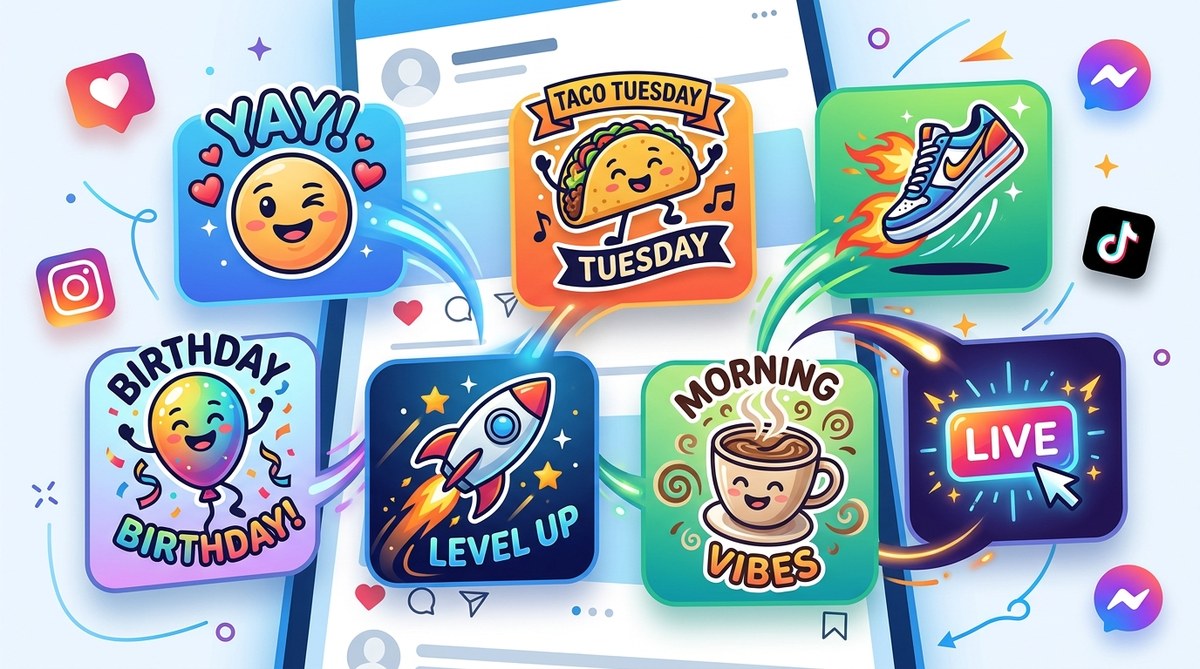
Social media stickers are everywhere. They pop up in Stories, DMs, and comment threads. They make brands feel human and creators look polished. But if you have tried to make animated stickers from scratch, you know the struggle. Raster files get blurry when resized. GIFs lose quality. And exporting a new version for every platform feels like a part-time job.
Vector art for social media stickers solves all of that. Vector files are mathematical, so they scale to any size without losing sharpness. You can export the same sticker as a PNG for Instagram, a GIF for TikTok, and an SVG for a website. The workflow is faster, the file sizes are smaller, and the final result looks crisp on any screen.
Vector art gives you a single editable source file that exports perfectly to any social media format. By building your stickers with clean paths and organized layers, you can animate them in minutes, resize them for any platform, and keep your brand consistent across every post. This guide shows you the exact process, from sketch to final export, so you can create stickers that stand out in 2026.
Why Vector Art Works Better for Stickers
Stickers are small by nature, but they get displayed at many sizes. A sticker on an Instagram Story might be 200 pixels wide. The same sticker on a TikTok video could be 400 pixels. If you use a raster image, those pixels stretch and blur. Vector paths stay sharp at every size.
There is another advantage. Vector files let you separate elements into layers. You can move an eyebrow, change a color, or swap a background without redrawing the whole sticker. That flexibility is gold when you need to produce a series of stickers for a campaign.
If you want to see how professional designers build their sticker libraries, check out this guide on mastering vector art techniques for stunning digital creations. It covers the foundational skills that make sticker design faster.
The 5 Step Workflow for Vector Stickers
Here is the process I use every time I make a new set of animated stickers. It works in Adobe Illustrator, Affinity Designer, or any vector tool with an animation export plugin.
-
Sketch the concept on paper or a tablet. Focus on one clear shape. Stickers need to read at a glance. A coffee cup with a steam swirl. A star with a wink. Keep the silhouette simple.
-
Build the base vector art. Use the pen tool or shape tools to create clean paths. Avoid too many anchor points. Simpler paths export faster and animate smoother.
-
Separate moving parts into layers. If the sticker winks, put the eyelid on its own layer. If it bounces, put the whole sticker on a motion layer. Name each layer clearly.
-
Animate using timeline or export plugin. In Illustrator, you can use the timeline panel or an export tool like GIF Wizard. In After Effects, import the vector file and animate the layers.
-
Export for your target platform. Instagram prefers MP4 or GIF under 15 seconds. TikTok works well with smaller GIF files or sticker PNGs with transparent backgrounds.
Common Mistakes and How to Fix Them
Even experienced designers slip up when switching from static graphics to animated stickers. Here is a table of the most common issues and their solutions.
| Mistake | What Happens | How to Fix It |
|---|---|---|
| Too many anchor points | File size is huge, animation lags | Use the simplify path tool to reduce points |
| Not separating layers | You cannot animate individual parts | Name each layer before exporting |
| Wrong export format | Background is not transparent | Export as PNG with transparency or GIF with alpha channel |
| Forgetting platform limits | Sticker gets cropped or rejected | Check each platform’s max file size and duration |
| Ignoring color space | Colors look dull on mobile | Work in sRGB and preview on a phone screen |
Animation Techniques That Work on Both Instagram and TikTok
You do not need complex keyframes to make stickers feel alive. Small movements do the job. Here are three animation styles that perform well on both platforms.
- Looping rotation. A sticker that spins slowly catches the eye. Set the rotation to 360 degrees over 3 seconds and loop it.
- Pulse scale. Make the sticker grow to 105% and shrink back. This mimics a heartbeat or a breath. It works great for reaction stickers.
- Layer swap. Change the expression on a face by swapping between two layers. Open mouth to closed mouth. Raised eyebrow to relaxed eyebrow.
“The best sticker animations feel accidental, not forced. If the movement is too big, it distracts from the content. Aim for a subtle wiggle or a slow blink. That is what makes viewers tap the sticker to use it themselves.” — Mia Torres, motion designer and sticker creator
Tools to Speed Up Your Vector Sticker Workflow
You already have a vector tool, but a few plugins and resources can cut your production time in half.
- Export plugins. Tools like GIF Wizard for Illustrator or Vectoraster for After Effects let you export directly to GIF without extra steps.
- Color palette generators. Use Adobe Color or Coolors to build a 5 color palette before you start. Stick to it for every sticker in the set.
- Free vector resources. Sites like Blood Sweat Vector offer free starter files. You can also find inspiration from top trends in vector artwork that every designer should know.
- SVG animation libraries. If you want to code your stickers, libraries like LottieFiles let you animate SVG files and export them as lightweight JSON files for web use.
How to Organize Your Sticker Library for Clients
If you design stickers for brands or small businesses, you need a system. Clients will ask for revisions. They will want new colors for holidays. They will need different sizes for different platforms.
Create a master file with all your vector art for social media stickers organized by folder. Inside each sticker folder, keep these files:
- The editable vector source file (.ai or .afdesign)
- A PNG export with transparent background
- A GIF export with the animation looped
- A flat PDF proof for client approval
Label each file with the sticker name and version number. For example: “coffee-wink_v2.ai”. This saves you from opening the wrong file when a client says “Can you make the steam blue instead of white?”
What Platforms Expect in 2026
Platforms update their specs regularly. Here is what works right now for vector stickers.
- Instagram Stories and Reels. MP4 files under 15 seconds with transparent backgrounds. Max file size is 4MB for Stories. Use a 1080×1920 canvas for Stories and a square 1080×1080 for Reels.
- TikTok. GIF stickers are popular in the sticker tray. Keep the file under 2MB and the animation under 3 seconds. TikTok prefers looping animations with no abrupt stops.
- Facebook Messenger. PNG stickers with transparent backgrounds work best. Animated stickers must be GIF or APNG. Max file size is 512KB.
- Snapchat. Snapchat uses its own sticker format, but you can import vector art as a PNG or GIF. Keep the design centered because Snapchat crops the edges.
If you are designing for a brand that needs stickers across all these platforms, build the vector art first, then export each format from the same source file. That way, you only edit one file when the client asks for changes.
A Practical Example: Building a Waving Hand Sticker
Let me walk you through a real sticker from start to finish.
Open your vector tool and draw a simple hand shape. Use a rounded rectangle for the palm and five small rounded rectangles for the fingers. Group them. Duplicate the group and rotate the fingers on the duplicate so they look like they are waving. Now you have two frames.
Export the first frame as a PNG. Export the second frame as a PNG. Open a GIF maker tool, import both frames, set the delay to 0.2 seconds, and loop it. You have a waving hand sticker in under 10 minutes.
For more complex animations, you can use layer visibility toggles. In Illustrator, create a layer for each frame and toggle visibility on and off. Export the animation using the timeline panel.
Mistakes to Watch Out For
Even with a solid workflow, some mistakes creep in. Here is a bullet list of the ones I see most often.
- Exporting with a white background instead of transparent
- Using too many colors, which makes the file size jump
- Forgetting to convert text to outlines before sharing the source file
- Animating at 60 fps when 12 fps gives a smoother sticker feel
- Not testing the sticker on a dark background to check for white halos
If you want to avoid these issues entirely, read this article on 7 vector art mistakes that are ruining your designs. It covers the technical pitfalls that trip up even seasoned designers.
Your Next Steps
You have the workflow, the tools, and the platform specs. Now it is time to make something.
Start with one sticker. Pick a simple shape like a heart, a star, or a smiley face. Animate it with a pulse or a rotation. Export it as a GIF and post it on your Story. See how it looks. Adjust the timing or the size. Then make a second sticker.
Each sticker you finish teaches you something about the process. You learn which animation speeds work. You learn which colors pop on a feed. You learn how to organize your layers so you can edit faster next time.
Vector art for social media stickers is not a trend. It is the standard for 2026 because it gives you control, quality, and speed. The more stickers you make, the faster your workflow becomes. And the faster your workflow becomes, the more time you have to experiment with new styles and techniques.
If you want to stay ahead of the curve, check out these emerging digital illustration styles to watch in 2026. They will give you fresh ideas for your next sticker pack.
Now open your vector tool and make a sticker that moves. Your followers are waiting.