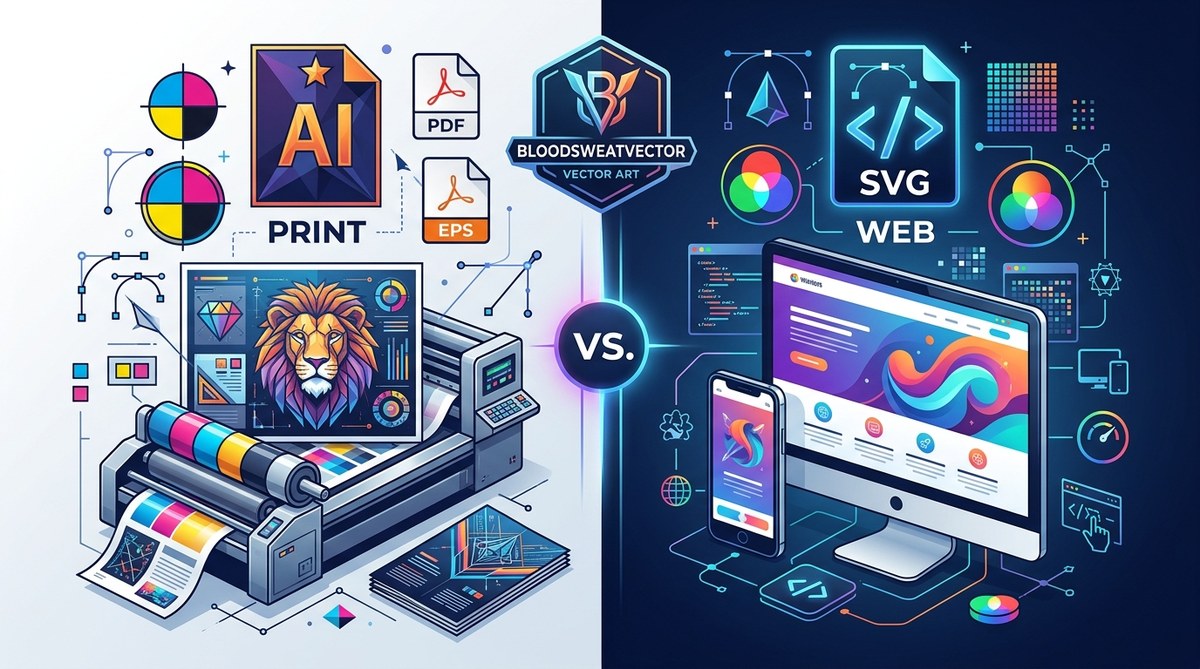
Choosing a vector file format shouldn’t feel like a gamble. You have a logo, an illustration, or a full brand identity ready to go. The client wants it for a billboard and their new website. The wrong format can break a print run or slow down a page load. In 2026, the landscape is simpler than you think. Let’s walk through which format wins for print, which wins for the web, and how to avoid the common pitfalls that trip up designers and developers every day.
For print, PDF is the most reliable vector format because it embeds fonts, preserves color profiles, and works with every commercial printer. For web, SVG is the standard for responsive, lightweight graphics. AI and EPS are useful for editing and legacy workflows, but they should not be your final delivery format. Pick the tool for the job, not the habit.
Why Format Choice Still Matters in 2026
Vector files are built on math, not pixels. That means they scale infinitely. But the way different formats handle colors, fonts, and metadata varies a lot. A mistake that looked fine on your screen can turn into a costly reprint. On the web, a bloated file can slow down your site and hurt your SEO. Knowing the strengths of each format helps you deliver work that looks sharp and works reliably.
The Main Contenders: SVG, EPS, AI, and PDF
Each format has a specific job. Here is how they stack up for common tasks.
| Format | Best For | Pros | Cons |
|---|---|---|---|
| SVG | Web, UI/UX, responsive icons | Small file size, editable in code, supports CSS and animations | Not ideal for CMYK print, limited support for complex gradients in some older browsers |
| EPS | Legacy print workflows, some sign shops | Universal support in old software, good for spot colors | Large file size, no transparency support in older versions, outdated |
| AI | Native Adobe Illustrator editing | Full editability, preserves layers and effects | Proprietary, not a delivery format for print or web without conversion |
| Final print delivery, client handoff | Embedded fonts, color management, universal viewer support | Can be bloated if not saved correctly, less editable than AI |
Print Workflow: The Safe Bet is PDF
If you are sending a file to a commercial printer, PDF is the format they want. It handles CMYK color mode, spot colors, and embedded fonts without breaking a sweat. EPS still appears in some sign and screen printing shops, but PDF has largely replaced it for most offset and digital printing.
Follow this process for a smooth print delivery:
- Set your document to CMYK before you start designing. Do not convert at the end.
- Embed all fonts or outline them. A missing font can ruin your layout.
- Export as PDF/X-1a or PDF/X-4. These are industry standards for print.
- Include bleed and trim marks if the design goes to the edge.
- Check your blacks. Rich black (C60 M40 Y40 K100) looks better than 100% K for large areas.
Expert advice: “I have seen hundreds of print jobs fail because someone sent an AI file with missing fonts or RGB colors. A proper PDF handles both. If your printer asks for an EPS, they are likely using older equipment. In that case, export from Illustrator with the EPS format, but always keep a master PDF for yourself.” — Senior print production specialist
Web Workflow: SVG is the Clear Winner
For web, SVG is the best vector file format for print vs web when the destination is a screen. It is text based, which means it compresses well, scales to any screen size, and can be styled with CSS. You can even animate it. In 2026, every modern browser supports SVG without issues.
- SVG files are small. A complex icon set in SVG can be 80% smaller than a PNG.
- You can inline SVG directly in HTML. This reduces HTTP requests.
- SVG supports responsive design. Use
viewBoxandpreserveAspectRatioto control scaling. - You can change colors and hover states with CSS. No need to export multiple versions.
Avoid using SVG for print. Most print workflows expect CMYK, and SVG is inherently RGB. Converting an SVG to CMYK can cause color shifts and unexpected results.
When to Use AI and EPS
AI is your working file format. Keep your master files in AI if you use Adobe Illustrator. That way you keep layers, symbols, and effects editable. But never send an AI file to a client or printer as the final format. They may not have Illustrator, and the file can render differently.
EPS is a legacy format. It still has a place in some sign making and large format printing, especially with older RIP software. If a vendor asks for EPS, give it to them. But do not use EPS for web or modern print workflows. It lacks transparency support and creates larger files than PDF.
Common Mistakes and How to Avoid Them
Even experienced designers slip up. Here are the most frequent issues and how to fix them.
- Forgetting to outline fonts. If the printer does not have your font, the text will reflow. Always outline or embed.
- Sending RGB files for print. RGB has a wider gamut, but commercial printers use CMYK. Convert early.
- Using JPEG compression in PDF. This rasterizes your vectors. Use ZIP or no compression for vector data.
- Saving SVG with inline styles. This bloats the file. Use CSS classes for styling instead.
- Ignoring bleed. A design that goes to the edge of the page needs 3mm (or 1/8 inch) extra on each side.
A Practical Decision Framework
When you sit down to export, ask yourself two questions.
- Where is the final file going?
- Who needs to open it?
If the answer is “a printing press” and “a prepress operator”, choose PDF. If the answer is “a website” and “a browser”, choose SVG. If the answer is “a client who wants to edit it later”, give them an AI file along with a PDF proof.
Building a Scalable Workflow
You can set up your design software to make this choice automatic. In Illustrator, create export presets for print PDF and web SVG. In Figma, use the export panel to pick SVG for icons and PDF for print specs. Keep your master files in a format that preserves all data, like AI or a layered SVG.
For a deeper look at how to organize your files for client handoff, check out our guide on what to include in a professional vector logo package at client handoff. It covers everything from file naming to proofing.
Matching Format to Use Case
Here is a bulleted breakdown for specific scenarios.
- Business cards and brochures: PDF with embedded fonts and CMYK color.
- Billboards and banners: PDF with large dimensions. Keep vectors simple to avoid rendering issues.
- Website icons and illustrations: SVG with CSS classes. Avoid inline styles.
- App UI assets: SVG exported from your design tool. Optimize with a tool like SVGO.
- Merchandise (t-shirts, mugs): Ask the printer. Many still prefer EPS for spot color separations.
- Client handoff: PDF for proof, AI or SVG for editability, EPS only if requested.
Why the Right Format Saves You Money
A single print re-run can cost hundreds of dollars. A slow website can lose visitors and sales. Choosing the right format upfront prevents both. In 2026, the tools are mature and the standards are clear. There is no reason to guess.
If you are working on brand identity projects, you might also enjoy our article on why minimalist vector art is dominating branding in 2026. It explores how clean shapes and smart format choices go hand in hand.
Making the Switch to a Better Workflow
The best vector file format for print vs web comes down to one idea: use the format that matches the destination. PDF for print. SVG for web. AI for editing. EPS for legacy needs. That is the whole formula.
Start today by updating your export presets. Check your last project. Did you send the right format? If not, make the change now. Your future self, and your clients, will thank you.
Pick One Format and Test It
You do not need to memorize every edge case. Pick the format that fits your most common task and test it with your printer or your development team. Once you see how smooth a proper PDF or SVG workflow feels, you will never go back to guessing again.
For more hands on tips, check out our 5 vector art workflow hacks to speed up your design process in 2026. They will help you streamline everything from file setup to final export.