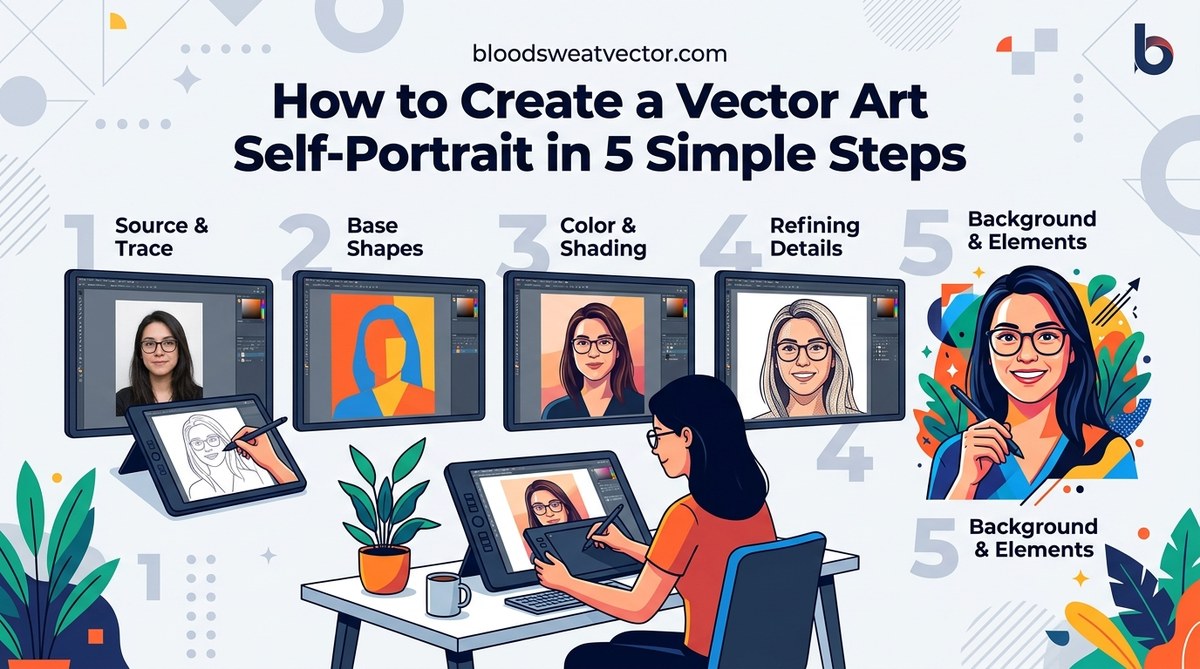
A self portrait is one of the most personal projects you can make as a digital artist. It is also one of the best ways to practice vector art. You know your own face better than anyone. That means you can spot when a line is off or when a shadow needs more depth. In this tutorial, you will learn how to create a vector art self portrait using a process that works in Adobe Illustrator, Affinity Designer, or any vector tool you prefer. We will keep things friendly and practical. No jargon. No fluff. Just clear steps that get you from a photo to a finished vector portrait.
Creating a vector art self portrait boils down to five repeatable steps: choose a high-contrast reference photo, build a clean base sketch or trace, layer flat color shapes, add highlights and shadows with simple shapes, and polish with fine details like hair strands or glasses. Focus on shapes, not lines, for a modern flat vector look.
Start with the Right Reference Photo
Your vector portrait will only be as good as the photo you use. That does not mean you need a professional studio shot. A well lit selfie taken with your phone can work perfectly. Here is what to look for:
- Even lighting. Avoid harsh shadows across your face. Soft window light or a ring light gives you clear shapes to trace.
- High resolution. A blurry photo makes it hard to see edges. Use the largest file your camera can produce.
- Straight on angle. A front facing portrait is easiest for beginners. You can try a three quarter view once you feel confident.
- Neutral expression. A slight smile is fine. Avoid extreme expressions that distort your features.
If you do not have a photo you like, take a new one right now. Stand near a window, hold your phone at arm’s length, and snap a few shots. Pick the one where your face is most visible.
Set Up Your Workspace
Open your vector software and create a new document. An artboard size of 1920 by 1080 pixels gives you plenty of room. Import your photo and place it on its own layer. Lock that layer so you do not accidentally move it while you work.
Lower the opacity of your photo to around 30 percent. This lets you see your vector shapes on top of the image. Create a new layer above the photo. This is where you will build your portrait.
Build the Face Shape
The face shape is the foundation of your portrait. Use the pen tool to trace the outline of your head. Start at the top of your hair and work your way down around your chin and jaw. Do not worry about individual strands of hair yet. Focus on the overall silhouette.
Follow these steps for a clean result:
- Zoom in to 100 percent to see the edges clearly.
- Click to add anchor points along the contour of your face.
- Close the shape by clicking back on your first anchor point.
- Fill the shape with a solid skin tone color.
- Hide the photo layer to check that the silhouette looks like you.
If your chin looks too round or your forehead seems flat, adjust the anchor points. You can move them one by one until the shape matches your face. This is the most important step. Take your time.
Add Facial Features with Simple Shapes
Now you will add your eyes, nose, and mouth. The trick is to think in shapes, not lines. Each feature should be a separate closed shape.
Eyes
Draw the eye shape using the pen tool. Start at the inner corner, trace the upper lash line, then curve down to the outer corner and back along the lower lash line. Fill it with white. Add a smaller circle for the iris and a tiny circle for the pupil. Use black for the pupil and your eye color for the iris.
Nose
The nose does not need a full outline. A simple shape under the nostrils and a subtle curve for the bridge is enough. Use a color slightly darker than your skin tone. This creates depth without looking like a sticker.
Mouth
Trace the line where your lips meet. Then add two separate shapes for the upper and lower lip. Use a pink or red tone. Keep the shapes soft and avoid sharp corners.
Eyebrows
Eyebrows are just curved shapes. Trace the top edge of your brow and fill it with a color close to your hair color. Adjust the thickness until it matches your photo.
Layer Color and Shading
Flat vector art looks modern, but a few shadows and highlights make it feel alive. The best way to add depth is with simple shapes.
Create a new layer for shadows. Use a color that is two shades darker than your skin tone. Draw shapes under your jawline, along the sides of your nose, and under your eyebrows. Lower the opacity to around 40 percent so they blend in.
Create another layer for highlights. Use a color two shades lighter than your skin tone. Draw small shapes on your cheekbones, the bridge of your nose, and your forehead. Set the opacity to 30 percent.
This technique is called the flat shading method. It is popular in modern vector portraits because it keeps the file clean and scalable.
| Technique | Best For | Common Mistake |
|---|---|---|
| Flat shapes | Clean, modern portraits | Using too many colors |
| Gradient shading | Soft, realistic portraits | Overcomplicating the file |
| Layered opacity | Depth without clutter | Forgetting to group layers |
| Outline trace | Cartoon style | Making lines too thick |
Refine Hair and Details
Hair can make or break a vector portrait. Start with a large shape that covers the main area of your hair. Fill it with your hair color. Then add smaller shapes for individual strands or sections. Do not draw every hair. Focus on the major chunks and the direction of the hair flow.
For glasses, draw the frame as a single shape with a hole in the middle. Use the subtract or difference tool to cut out the lens area. Add a slight reflection with a white shape at 20 percent opacity.
Check your portrait against the photo. Are the eyes the right distance apart? Is the nose the correct width? Make small adjustments now. You can always move anchor points or resize shapes.
Export and Share
Once you are happy with your portrait, hide the photo layer. Save your file as an SVG or PNG. SVG is best for web use because it stays sharp at any size. PNG works well for social media.
Share your work with friends or on design communities. Feedback helps you improve. If you want to go deeper, check out our guide on mastering vector art techniques for stunning digital creations. It covers advanced shading and texture methods.
Common Mistakes and How to Avoid Them
Even experienced artists make errors when starting with vector portraits. Here are the most common ones and how to fix them.
- Using too many anchor points. Keep your shapes simple. Too many points create jagged edges. Use the smooth tool to clean them up.
- Forgetting to name layers. When you have 30 shapes, finding the right one is hard. Name your layers as you go.
- Matching skin tone exactly. Your photo has lighting that affects color. Pick a base color that looks natural in flat light.
- Skipping the photo reference. Tracing from memory leads to inaccurate proportions. Always use a reference.
Vector art is about precision, not perfection. The best portraits are the ones where the artist made intentional choices about which details to include and which to leave out.
Your First Portrait Is a Starting Point
Your first vector self portrait will not be perfect. That is fine. The goal is to learn the process. Each time you make one, you will get faster and more accurate. You will start to see faces as a collection of shapes instead of a complex subject.
Try making a portrait of a friend next. Then try a pet. Then try a celebrity. The same five steps apply every time. Before long, you will have a portfolio of vector portraits that show your growth as an artist.
If you want to expand your skills, read about top trends in vector artwork that every designer should know for 2026. The flat vector style is still going strong, and minimal portraits are a huge trend right now.
Keep Practicing and Keep Sharing
The only way to get better at vector portraits is to make more of them. Set a goal to create one self portrait every month. Use the same photo or take a new one. Compare your latest portrait to your first one. You will be surprised at how much you improve.
Share your work on social media with the hashtag VectorSelfPortrait. Join design groups and ask for constructive feedback. The vector art community is welcoming and full of artists who want to help you grow.
Your face is your most accessible subject. You carry it with you everywhere. Use it to practice, experiment, and build your skills. With these five steps, you now have a solid framework to create a vector art self portrait that you can be proud of.