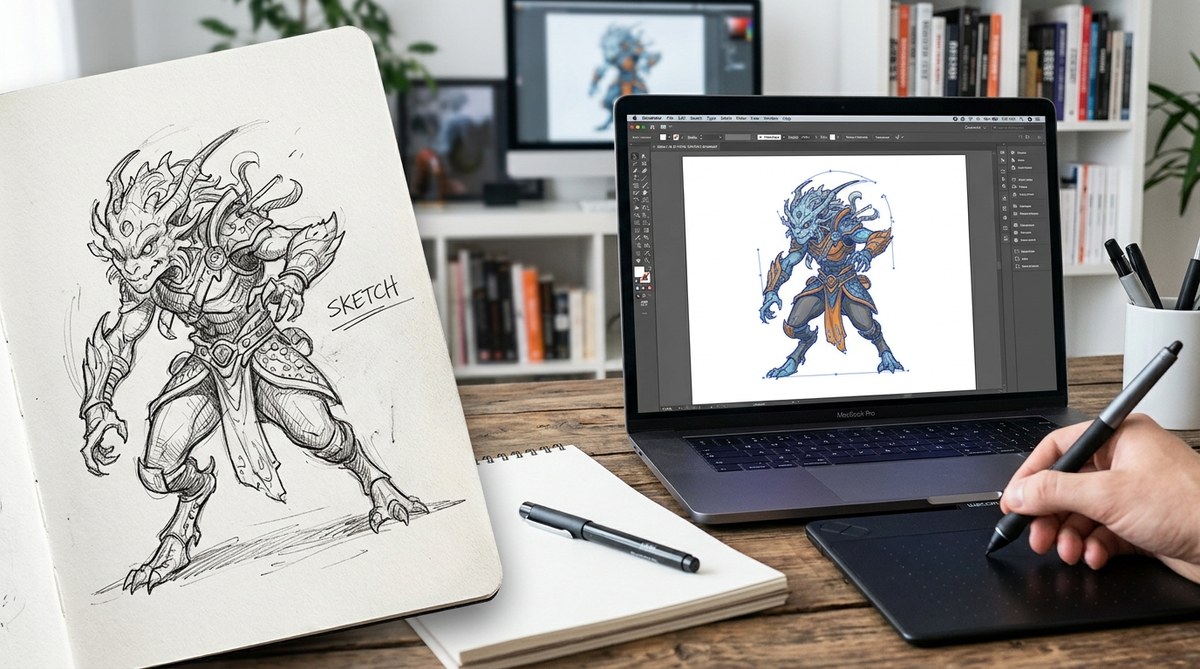
You have a sketchbook full of ideas. Pencil lines that capture the perfect curve, the right expression, the loose energy that makes hand drawn art feel alive. But when you try to use that sketch in a design project, it turns into a pixelated mess as soon as you zoom in. That is where vector graphics save the day. Converting hand drawings to vector format gives you clean, scalable paths that stay sharp at any size. Whether you are a professional illustrator or a hobbyist doodling on sticky notes, learning to vectorize your sketches opens up a world of creative possibilities.
Converting hand drawn art to vector is easier than you think. Start with a clean, high contrast scan or photo. Use image trace tools in your vector software or try dedicated vectorization apps. Adjust settings to balance detail and smoothness. Then refine the paths manually for that polished finish. The result is scalable, editable artwork ready for logos, prints, and digital use.
Why Vectorize Your Hand Drawings?
A hand drawn line has charm, but it also has limits. Scanned sketches become raster images. Raster images stretch and blur when you resize them. They lose quality on large prints and look fuzzy on high resolution screens. Vector graphics solve this. A vector file stores your artwork as mathematical paths, not pixels. You can scale it to billboard size without losing a single detail. You can edit every anchor point, change stroke weight, and recolor elements in seconds.
For designers, this means your hand drawn logo concepts can become polished brand assets. For illustrators, vector sketches mean you can reuse elements across projects, build consistent libraries, and export to any format without worrying about resolution. And for hobbyists, it is a fun way to turn doodles into stickers, t shirts, or digital stamps.
Preparing Your Artwork for the Best Results
Before you even open your vector software, the quality of your source image matters. Garbage in, garbage out, as they say. Follow these steps to get the cleanest conversion.
- Use a fine tipped pen or marker for your final lines. Pencil graphite can be messy and hard for the auto trace to read.
- Keep the paper flat and free of wrinkles. Shadows and creases create unwanted anchor points.
- Light your artwork evenly when photographing or scanning. Avoid harsh shadows.
- Scan at 600 DPI if you have a scanner. That gives the tracer enough detail to see edge transitions.
- If you take a photo, place the paper on a solid surface and use the camera square on, not at an angle.
After you have the digital image, do a quick clean up. Adjust levels to make the lines pure black and the background pure white. Remove any dust specks or stray marks. A clean source image makes auto trace work like magic.
Step by Step: How to Convert Hand Drawings to Vector
Here is the practical process. You can adapt these steps to your favorite software, whether that is Adobe Illustrator, Affinity Designer, Inkscape, or an online tool.
-
Import your image. Open your vector program and place the scanned sketch onto a new document. Keep it on its own layer and lock that layer to avoid accidental moves.
-
Open the image trace panel. In Illustrator, go to Window > Image Trace. In Inkscape, use Path > Trace Bitmap. Each tool has similar options.
-
Choose a preset. Most tracers offer presets like Black and White Logo, Detailed Illustration, or High Fidelity Photo. For hand drawn line art, pick Black and White Logo or a similar preset that preserves thin lines.
-
Adjust the settings. Tweak the threshold to decide how dark a pixel must be to become a line. A lower threshold catches faint lines but may pick up noise. A higher threshold cleans up rough edges. Experiment until your lines look smooth but still match the original.
-
Expand the trace. Once you are happy, expand the traced object to turn it into editable vector paths. Your sketch is now a group of filled shapes or strokes.
-
Clean up the paths. Ungroup the result. Delete stray shapes. Use the Direct Selection tool to smooth jagged corners. Merge overlapping shapes with the Pathfinder or Shape Builder.
-
Apply stroke styling. If the trace created fills, convert them to strokes. Set the stroke color to black (or any color you want). Adjust the stroke weight to match your hand drawn line thickness.
-
Save as SVG or AI. Your final vector file is ready for any project. You can export it, share it, and scale it infinitely.
Common Mistakes and How to Avoid Them
Even experienced artists make errors when they first start vectorizing. Use this table to spot potential pitfalls and fix them quickly.
| Mistake | Why It Happens | How to Fix It |
|---|---|---|
| Too many anchor points | Low threshold or noise in the source | Increase the threshold or use a smoothing filter before tracing |
| Broken lines and gaps | Thin or faded pencil strokes | Retrace with a pen, or use a higher threshold |
| Artifacts around edges | Dirt, shadows, or paper texture | Clean the image first; use a despeckle filter |
| Curves look jagged | Low resolution scan or photo | Scan at 600 DPI; use a higher resolution camera |
| Loss of hand drawn character | Over smoothening the trace | Use the Fidelity slider to keep more detail |
Tools That Make Vectorization Easy
You do not need a massive budget or a powerful computer. Many tools can help you convert hand drawings to vector quickly.
- Adobe Illustrator – The industry standard. Its Image Trace tool is powerful and customizable.
- Inkscape – Free and open source. The Trace Bitmap feature works great for clean line art.
- Affinity Designer – A one time purchase with excellent vectorization tools.
- VectorMagic – A dedicated online tool that automates the process with smart algorithms.
- SVGConverter.app – A free online option for simple sketches.
Each tool has its own quirks. If you are just starting out, try Inkscape or SVGConverter first. As you grow more comfortable, move to Illustrator for finer control. For a deeper look at how to get the most out of your vector software, check out our guide on mastering vector art techniques.
Expert Advice for Better Vectorization
“Treat the auto trace as a rough draft. The real magic happens when you go in and adjust those paths by hand. I always rebuild the structure of the vector using the traced image as a guide. It takes a bit longer, but the result is a vector that actually feels like my original drawing, not a computer generated shadow.”
— Rachel Kim, freelance illustrator and vector artist
This sentiment echoes what many professionals say. Auto trace is a starting point, not the final product. Use it to capture the essence of your sketch, then use your vector editing skills to refine every curve and node.
Bringing Your Hand Drawn Style Into Digital Projects
Once you have a clean vector version of your sketch, you can do so much more with it. Use it as a logo mark. Turn it into a repeating pattern. Combine it with other vector elements to build a full composition. The top trends in vector artwork show that hand drawn aesthetics are more popular than ever, especially when paired with clean digital typography.
You can also experiment with color. Select individual paths and fill them with gradients. Add texture overlays to keep that handmade feel. The beauty of vector is that you can always go back and adjust. Your hand drawn art becomes a flexible asset, not a static image.
Making Convert Hand Drawings to Vector a Regular Habit
The more you practice this process, the faster and better you will get. Start with simple sketches, like a single flower or a basic shape. Work up to complex scenes with multiple line weights. Before long, you will find yourself reaching for a pen and paper knowing that your sketch will soon become a crisp, scalable vector. Your creativity does not have to stay trapped in a notebook. Bring it into your digital workflow, and watch your ideas grow.