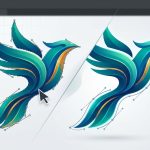
You are busy. You have three client projects open, an inbox full of revision requests, and a deadline that moved up by two days. The last thing you need is a vector art workflow that fights you at every turn. In 2026, the difference between a profitable freelance career and one that burns you out often comes down to process. Not talent. Not software. Process. This guide walks you through a modern vector art workflow built for speed, clarity, and client satisfaction. No fluff. Just the steps that save real time.
A strong vector art workflow for freelance designers in 2026 relies on three pillars: structured file preparation, smart use of modern vector tools, and a clear client handoff system. Adopting a layered naming convention, using non-destructive effects, and packaging final files with a style guide reduces revision cycles and builds professional trust. This article gives you a repeatable process that works for logos, illustrations, and branding projects.
Start With a Smarter File Foundation
Your workflow begins before you draw a single path. The way you set up a file determines how smoothly the rest of the project goes. Many freelance designers skip this step and pay for it later with messy layers, broken links, and confused clients.
Use a consistent template for every new project. Your template should include:
- Pre-named layers (Outline, Base Color, Highlights, Shadows, Details)
- A locked background layer with the artboard dimensions
- A notes layer for client feedback or personal reminders
- Global swatches for the brand palette
- A character style set for any text elements
This structure alone can cut your setup time by fifteen minutes per project. Over a year of freelance work, that adds up to hours saved. If you want to go deeper on organizing complex illustrations, check out our guide on the art of vector layering how to build complex illustrations step by step.
The 2026 Vector Art Workflow in Five Steps
Here is the core process that works for logo design, branding illustrations, and merchandise art. Follow these steps in order for every project.
-
Thumbnail and concept phase. Use a sketchbook or a raster app like Procreate to generate at least ten rough ideas. Do not open your vector software yet. Focus on composition and shape language.
-
Vector construction with clean geometry. Bring your best sketch into your vector tool. Use the Pen tool and basic shapes to block in the main forms. Keep your anchor points low. Avoid complex paths until the silhouette is approved.
-
Color and gradient application. Apply your global swatches first. Then add gradients using the Gradient tool with midpoints pulled toward the center for smoother transitions. Use non-destructive effects like Recolor Artwork to test palettes without ruining your original.
-
Refinement and detail pass. Zoom in to 200% and check every curve. Adjust overlapping paths. Add highlights and shadows on separate layers. This is where you polish the piece.
-
Client review and output. Export a low-res PDF or PNG for approval. Once approved, package the final file with all fonts, links, and a style sheet. Use our checklist for what to include in a professional vector logo package at client handoff.
Tools That Make the Workflow Faster
The software landscape in 2026 offers more options than ever. You do not need every tool. You need the right ones for your specific freelance work.
| Tool | Best For | Why It Works in 2026 |
|---|---|---|
| Adobe Illustrator | Professional vector illustration and branding | Industry standard with new variable-width stroke tools and real-time collaboration |
| Affinity Designer | One-time purchase, fast performance | Excellent for designers who want a lower cost option with no subscription |
| Inkscape | Open source vector editing | Great for freelancers on a tight budget who need SVG export |
| Figma | UI/UX and team-based vector work | Cloud based vector editing with strong prototyping features |
| Vectornator (Linearity) | iPad based vector drawing | Perfect for sketching and vector work on the go |
Pick one primary tool and learn it deeply. Jumping between apps slows you down. If you are curious about which tools to master this year, read our list of 10 vector art tools every designer should master by 2026.
Common Workflow Mistakes That Cost You Time
Even experienced freelancers fall into these traps. Spot them early and adjust your process.
- Skipping the sketch phase. Jumping straight into vector software often leads to overcomplicated shapes and more revisions.
- Using too many anchor points. Clean curves use fewer points. Extra points create bumpy lines and harder edits.
- Ignoring layer naming. When a client asks for a change, a messy layer panel makes finding the right element painful.
- Forgetting to outline fonts. Sending a file with live fonts can break your client’s ability to edit the artwork.
- Saving only one format. Clients need AI, SVG, EPS, and PNG. Deliver all of them in a single package.
For a deeper look at what to avoid, check out our article on 7 vector art mistakes that are ruining your designs.
How to Handle Client Revisions Without Losing Your Mind
Revisions are part of freelance life. But they do not have to derail your workflow. Set clear boundaries from the start.
Include a revision cap in your contract. Three rounds is standard. After that, charge hourly. When a revision comes in, isolate the change to a single layer or group. Do not rebuild the whole file. Use the Layers panel to lock everything except the element you need to edit.
“The best revision strategy is a clear brief. When a client sends vague feedback like ‘make it pop,’ ask them to point to a specific area and describe what they want changed. This one habit cut my revision time by half.” – Jenna Reyes, freelance vector illustrator
If you often work with branding clients, you might find our guide on how to craft unique vector art for brand identity in 2026 helpful for aligning your style with client expectations.
Building a Scalable SVG Workflow
SVG files are everywhere in 2026. Web designers, merch printers, and UI teams all want scalable vector graphics that load fast and look crisp. If you are not already exporting SVG files, add this to your workflow.
Keep your SVG code clean. Use simple shapes instead of complex compound paths when possible. Name your layers and groups clearly because those names carry over into the SVG code. Test your SVG in a browser before sending it to a client.
For a complete breakdown of this process, read our guide on how to build a scalable SVG workflow for branding and merch clients.
Your Vector Art Workflow Checklist
Use this bullet list as a daily reminder. Print it out. Stick it near your monitor.
- Set up a template with named layers and global swatches
- Sketch at least ten concepts before opening vector software
- Build with basic shapes and low anchor points
- Apply non-destructive effects and global colors
- Review curves at 200% zoom
- Outline fonts and embed images before export
- Package files with AI, SVG, EPS, and PNG formats
- Include a style guide or color sheet for the client
- Back up your project to cloud storage
Streamline Your Freelance Future
A strong vector art workflow does more than save time. It makes you look professional. Clients notice when files are organized, revisions are fast, and deliverables are complete. In 2026, the freelance designers who thrive are the ones who treat their process as seriously as their art.
Start with one change. Maybe it is setting up a template. Maybe it is naming your layers. Make that change today. Then add another next week. Over a few months, your workflow will become a system that supports your creativity instead of fighting it. You will deliver better work, earn more trust, and keep your evenings free for the projects that actually excite you.
For more on building a portfolio that attracts the right clients, see our guide on how to build a vector art portfolio that attracts clients. And if you want to stay ahead of the curve, check out the emerging digital illustration styles to watch in 2026.