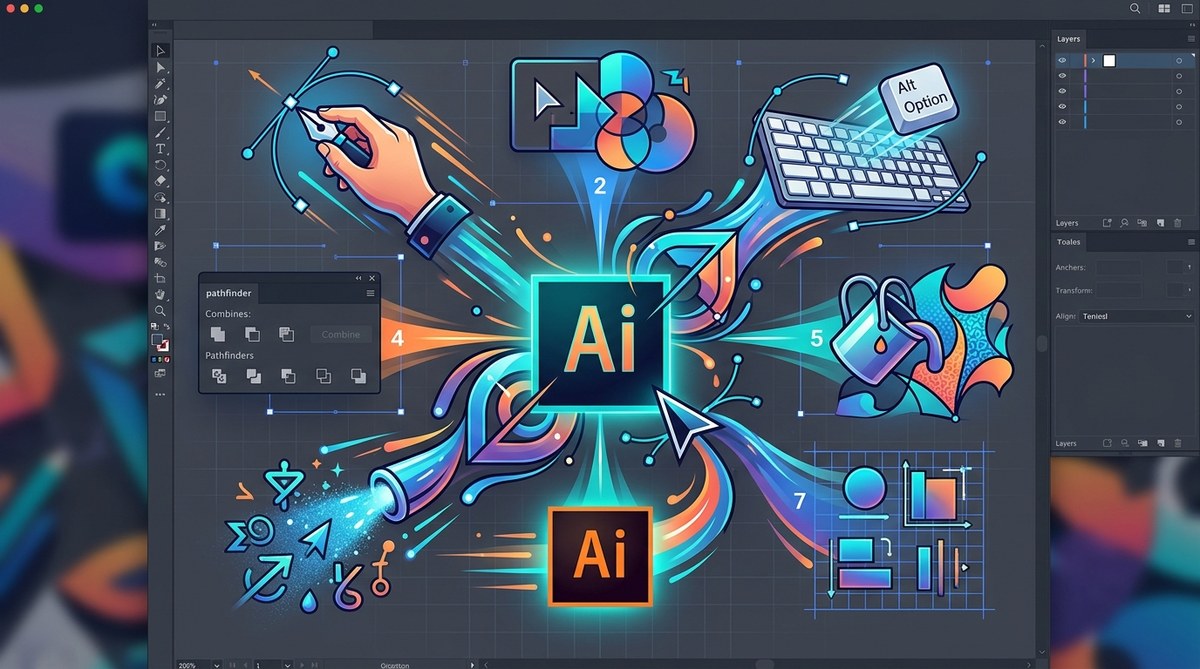
Every designer knows the feeling. You are in the zone, your cursor is moving, and then you stop. You reach for the mouse. You click through a menu. You lose the rhythm. Those small interruptions add up over a project. Adobe Illustrator is a powerful tool, but its full speed only comes when you keep your hands on the keyboard. Learning the right shortcuts changes everything. It turns a sluggish session into a smooth, creative flow.
Mastering Adobe Illustrator shortcuts is the fastest way to cut hours from your weekly design work. This guide covers the most useful keyboard commands for selection, drawing, editing, and repeating actions. You will learn how to avoid common mistakes and build muscle memory. By the end, you will have a practical system for working faster without sacrificing quality.
Why Keyboard Shortcuts Matter More Than Ever
Your time is valuable. Every time you pause to grab a tool from the toolbar, you break your concentration. Shortcuts keep your eyes on the canvas and your hands on the keys. This is not about being a speed demon. It is about staying in a creative state for longer periods.
Think about a typical project. You might need to switch between the Selection tool and the Pen tool dozens of times. You might duplicate objects, group them, and adjust anchor points. Each action has a shortcut. Using them consistently can cut your workflow time by a noticeable margin.
Many designers resist learning shortcuts because they think it will take too long to memorize them. The truth is that you only need to learn a handful to see a big difference. Start with the ones you use most often. Add more over time.
The Core Shortcuts Every Designer Should Know
Here is a list of the most essential Adobe Illustrator shortcuts. These are the commands you will use in almost every project.
- V – Selection Tool. This is your go to for moving objects around the artboard.
- A – Direct Selection Tool. Use this to grab individual anchor points or path segments.
- P – Pen Tool. The foundation of vector drawing. Hit P and start plotting points.
- T – Type Tool. Need to add text? Press T and click on the canvas.
- M – Rectangle Tool. Great for creating basic shapes.
- I – Eyedropper Tool. Pick up colors from existing artwork.
- Ctrl + D (Cmd + D on Mac) – Repeat Last Action. This is a massive time saver. It repeats your last transformation or effect.
- Ctrl + G (Cmd + G) – Group Objects. Keep related elements together.
- Ctrl + Shift + G (Cmd + Shift + G) – Ungroup. Break apart a group when you need to edit individual pieces.
- Ctrl + Z (Cmd + Z) – Undo. Your safety net.
- Ctrl + Shift + Z (Cmd + Shift + Z) – Redo. Step forward again.
These eleven commands cover the bulk of daily design work. If you learn nothing else, start here.
How to Build Muscle Memory with a Simple Routine
Memorizing shortcuts is one thing. Making them automatic is another. You need a routine. Here is a three step process that works.
- Pick three shortcuts. Do not try to learn everything at once. Choose three that you use frequently. For example, V for Selection, A for Direct Selection, and Ctrl + D for Repeat.
- Use them exclusively for one hour. Force yourself to avoid the mouse for those specific actions. It will feel awkward at first. That is normal. Push through it.
- Add three more. Once the first three feel natural, add another set. Repeat the process. Within a week, you will have a solid foundation.
This method works because it respects how your brain forms habits. Slow and consistent wins the race.
Common Mistakes and How to Avoid Them
Even experienced designers make errors when using shortcuts. The table below shows frequent mistakes and the correct approach.
| Mistake | Why It Happens | The Fix |
|---|---|---|
| Accidentally pressing Ctrl + W | Muscle memory from other apps | Use Ctrl + Shift + W to close tabs safely, or remap if needed |
| Forgetting to ungroup before editing | Objects are grouped from a previous step | Press Ctrl + Shift + G to break the group |
| Using the wrong selection tool | V and A look similar on the keyboard | Practice switching between them until it becomes automatic |
| Hitting Ctrl + D too many times | Repeating an action you did not intend | Use Ctrl + Z immediately to undo the extra repeats |
| Not saving before a big undo chain | Undo history can be lost after certain actions | Get in the habit of pressing Ctrl + S every few minutes |
These issues are easy to fix once you know what to watch for. Pay attention to your hands. Slow down when you are learning a new sequence.
Advanced Shortcuts for Power Users
Once you have the basics down, it is time to level up. These shortcuts will handle more complex tasks.
- Ctrl + 7 (Cmd + 7) – Make Clipping Mask. This hides everything outside a shape. It is essential for vector art.
- Ctrl + Alt + 2 (Cmd + Option + 2) – Unlock All. If you have locked objects and need to edit them, this saves digging through the menu.
- Ctrl + Y (Cmd + Y) – Outline Mode. This shows your paths without fills or strokes. It is great for checking anchor points and cleaning up lines.
- Ctrl + Shift + H (Cmd + Shift + H) – Show/Hide Artboards. Toggle the artboard boundaries on and off.
- Ctrl + Shift + D (Cmd + Shift + D) – Show/Hide Transparency Grid. Useful when working with transparent objects.
Expert Advice: Spend one session per week working exclusively in Outline Mode. It forces you to see the structure of your vector art. You will catch messy paths and stray anchor points that you normally miss. This habit alone will improve the quality of your final files.
How to Customize Your Shortcuts for a Personal Workflow
Illustrator lets you customize keyboard shortcuts. This is helpful if you have a specific tool you use constantly. Maybe you use the Shape Builder tool more than the Pen tool. You can assign a single key to it.
To customize shortcuts, go to Edit > Keyboard Shortcuts. A window will open showing all current commands. Click on the one you want to change and press your new key combination. Be careful not to overwrite a shortcut you use often.
Here are a few ideas for customization.
- Assign the Shape Builder tool to Shift + M if you use it frequently.
- Remap the Artboard tool to Shift + O for easier access.
- Set a shortcut for the Smooth tool if you draw with a stylus.
Customizing your workspace makes Illustrator feel like your own. It aligns with how you work.
The Link Between Shortcuts and Better Vector Art
Shortcuts do more than save time. They help you think in vectors. When you can switch tools without looking, your brain stays focused on the design problem. You stop thinking about the software and start thinking about the art.
This is especially true when you are working on complex projects like logos or detailed illustrations. If you want to go deeper into building a professional brand, check out our guide on how to craft unique vector art for brand identity in 2026. It covers how to apply these speed techniques to real client work.
For those who want to avoid common pitfalls, our article on 7 vector art mistakes that are ruining your designs pairs well with this shortcut guide. Speed is useless if your foundations are weak.
Putting It All Together in Your Daily Practice
You do not need to be a shortcut expert overnight. Start with the core list. Add the advanced commands as you feel comfortable. Customize the keys that matter most to you. Over the next week, pay attention to every time you reach for the mouse. Ask yourself if there is a faster way.
The goal is not to eliminate the mouse completely. Some tasks are better suited to clicking and dragging. But for the majority of your workflow, shortcuts will keep you moving forward.
Building a Faster Future for Your Design Career
Every minute you save on repetitive tasks is a minute you can spend on creativity. That might mean more time for refining your art, taking on extra projects, or simply stepping away from the screen. Learning Adobe Illustrator shortcuts is an investment in your career. It pays off with every project you complete.
Start today. Pick three shortcuts from this list. Use them for the rest of the day. Tomorrow, add three more. By the end of the week, you will wonder how you ever worked without them. Your hands will know the keys. Your art will thank you.