Every vector designer knows the feeling. You spend hours tweaking bezier curves, adjusting anchor points, and redoing layers. The client wants revisions, the deadline is breathing down your neck, and you wonder if there is a faster way. There is. In 2026, the best vector artists are not just talented. They work smart. They use a set of repeatable techniques that cut down production time without sacrificing quality. These are not magical plugins or expensive subscriptions. They are simple shifts in how you use the tools you already have. Here are five vector art workflow hacks that will change your pace.
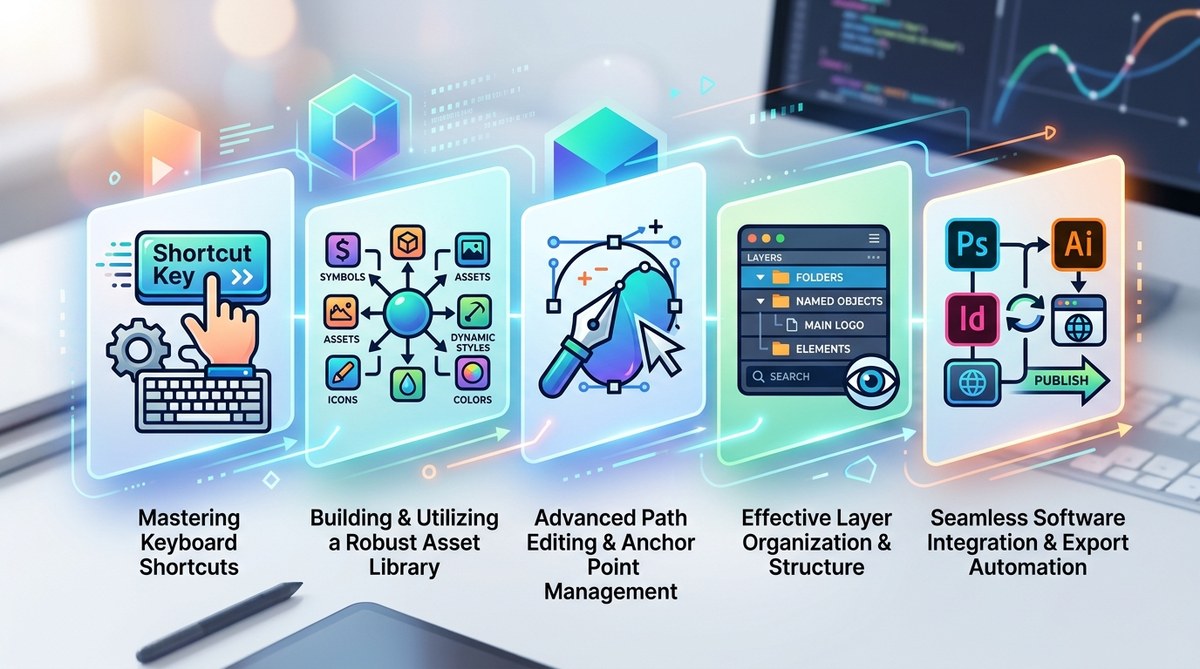
Speed in vector art comes from reducing repetitive clicks and organizing your layers before you draw. These five workflow hacks focus on anchor point discipline, global recolor tricks, smart use of symbols, keyboard shortcut audits, and batch export scripts. Apply them today and you will cut your design time by thirty percent or more while keeping full creative control.
Hack One: Tame Your Anchor Points with a Simple Rule
Every extra anchor point is a potential headache. When you draw a curve, aim for the minimum number of points that hold the shape. A common mistake is to add points where you think the curve needs support. In reality, each extra point creates a wobble later when you try to adjust it. The rule is simple: use one point for every change in direction. A smooth arc needs two points, one at each end. A corner needs one point with hard handles. If you find yourself fighting with the pen tool, zoom in and check for unnecessary points.
Try this: after finishing a path, select it and use the simplify command. Most vector programs have a slider that reduces points while preserving shape. Set it low, around 80 to 90 percent retention, and watch your curve handles clean up. Your strokes will look smoother, and editing becomes faster. For more advanced polish, see our guide on
Hack Two: Recolor Everything in One Pass
Do you still select each shape and change the fill color one by one? There is a better way. Use global color swatches or styles. In Adobe Illustrator, that means creating a swatch that you apply to multiple objects. Then, when you change the swatch, every object updates. In Affinity Designer, it works through global colors. In Inkscape, you can use clones or linked fill settings. The principle is the same: build a color palette as symbols or swatches at the start of your project.
If you work with clients who ask for multiple color variants, this hack alone saves hours. Build one master design in a grayscale or single color, then apply a global recolor. For logos or icons, this technique is essential. Check out our article on https://bloodsweatvector.com/how-to-create-eye-catching-logos-using-vector-art-techniques/ to see it applied in a real project.
Here is a table comparing how different tools handle global recoloring:
| Software | Method | Ease of Editing |
|---|---|---|
| Adobe Illustrator | Global swatches in Swatches panel | Medium, needs setup |
| Affinity Designer | Global colors in Color panel | Easy, visual feedback |
| Inkscape | Linked fill via Clones or CSS classes | Requires learning curve |
| CorelDRAW | Color Styles | Easy, similar to AI |
| Figma (vector mode) | Local styles in Design panel | Very easy, ideal for UI |
Hack Three: Turn Repeating Elements into Symbols
Vector art often contains repeated shapes. Buttons, leaves, stars, dots, or small icons appear again and again. Instead of duplicating and editing each copy, make a symbol. A symbol is a master object. When you change the master, every instance updates. This is not just for icons. Use symbols for backgrounds, texture patterns, or frame corners.
Imagine you are making a set of social media icons. You draw a circle for the background, then place the brand logo inside. Later, the client decides to change the background color. If you used a circle symbol, you edit it once and all icons change. If you did not, you manually adjust twenty circles. The time saved is enormous.
A quick bulleted list of things you can turn into symbols:
- Background frames and containers
- Decorative elements like leaves or lines
- Shadows and highlights that repeat across objects
- Small icons used inside larger illustrations
- Patterns or gradients applied to multiple areas
Hack Four: Audit Your Keyboard Shortcuts Twice a Year
Your keyboard shortcuts are a hidden bottleneck. Most designers learn the default set and stop there. But defaults are often designed for general use, not for your specific workflow. Take ten minutes to map the commands you use most often to keys that feel natural. For example, if you constantly toggle between the selection tool and the pen tool, assign them to side buttons on your mouse or to adjacent keys.
A good practice is to export your current shortcut set and review it every six months. Remove shortcuts you never use and add ones for actions like “convert anchor point” or “average points.” Many artists overlook the power of single-key shortcuts for color picking or layer visibility. If you are on a laptop, consider using function keys for actions that normally require a mouse click.
Here is a numbered list of the most impactful shortcuts to optimize:
- Pen tool toggle (usually P) but also add a quick switch to the direct selection tool (A) for adjusting points.
- Join paths (Command+J on Mac, Ctrl+J on Windows) to close open paths without reaching for menus.
- Split at anchor point (not default in many programs) — assign it to something like Shift+S.
- Reapply last effect (Command+Shift+E or Ctrl+Shift+E) for repeating filters.
- Toggle snap to grid (Command+Shift+; or similar) to align objects precisely and turn it off when freehand drawing.
Hack Five: Automate Exports with Batch Scripts
Saving out multiple versions of a vector file is tedious. You need a high-res PNG, a small web version, an SVG, a PDF for the client, and maybe a JPEG for social media. Doing each export manually wastes time. Instead, use a batch export or a script.
Many vector programs now include asset export panels. In Illustrator, use the Export for Screens feature. In Affinity Designer, use the Export Persona. In Figma, you can set multiple export scales. The trick is to set up your artboards or slices at the beginning of the project, so you can export everything with one click. If your software supports scripts, write a simple one that renames files and places them in folders by format.
For those who work with illustration sets, this hack is a lifesaver. You can export fifty icons in two seconds instead of an hour. For more advanced automation ideas, check out
Expert advice from a seasoned vector artist: “I used to spend twenty minutes exporting files for each client. Now I prep my artboards in the first five minutes of a project. The export panel does the rest. The biggest time suck is not the drawing, it is the repetition. Automate everything that is not creative.”
Which Hack Should You Try First?
Not every hack fits every project. If you are doing a one-off logo, the global color trick might matter less than anchor point discipline. If you are building a library of icons, symbols and batch exports will be your best friends. Choose one hack to test on your next project. Master it, then add another.
The table below maps each hack to common tasks, so you can pick your priority.
| Task Type | Best Hack to Apply | Expected Time Saved |
|---|---|---|
| Logo design | Global colors + anchor discipline | 20 to 40 percent |
| Icon set creation | Symbols + batch export | 50 percent or more |
| Detailed illustration | Anchor point control + shortcuts | 15 to 30 percent |
| Rebrand or color edit | Global colors only | 30 to 50 percent |
| Multiple file formats | Batch export script | 60 percent on exports |
Patterns That Hurt Your Flow
Even good habits can turn into bad ones over time. Watch out for these common traps:
- Adding too many layers. Group objects instead of stacking dozens of layers.
- Using excessive effects that slow down the file (like live drop shadows on many objects).
- Forgetting to save incremental versions. Use Save As every major step.
- Ignoring the alignment panel. Use it instead of manual dragging.
If you find yourself fighting with the software often, step back and ask: “What action am I repeating?” That repetition is your next hack.
Making These Hacks a Daily Habit
The real power of these vector art workflow hacks is not in knowing them. It is in using them until they become automatic. Start with one hack each week. Week one, clean up your anchor points. Week two, set up global swatches. Week three, create a symbol library for a project you are about to start. By the end of the month, these five techniques will feel like second nature.
Vector art is a craft. The tools should support you, not slow you down. When you remove friction from the process, you free up mental energy for creativity. That is the goal. Less clicking, more making.
If you want to stay ahead of the curve in 2026, these small adjustments will keep your portfolio fresh and your deadlines manageable. For a deeper look at what is shaping vector art this year, read our piece on
Your Next Project Starts with One Change
You do not need to overhaul your entire workflow overnight. Pick the hack that annoys you the most right now. Maybe it is the constant recoloring. Maybe it is the export mess. Solve that one problem today. The satisfaction of a clean, fast workflow will motivate you to tackle the next. Vector design in 2026 is faster than ever if you let it be. Try one of these hacks on your current project and see how much time you reclaim.