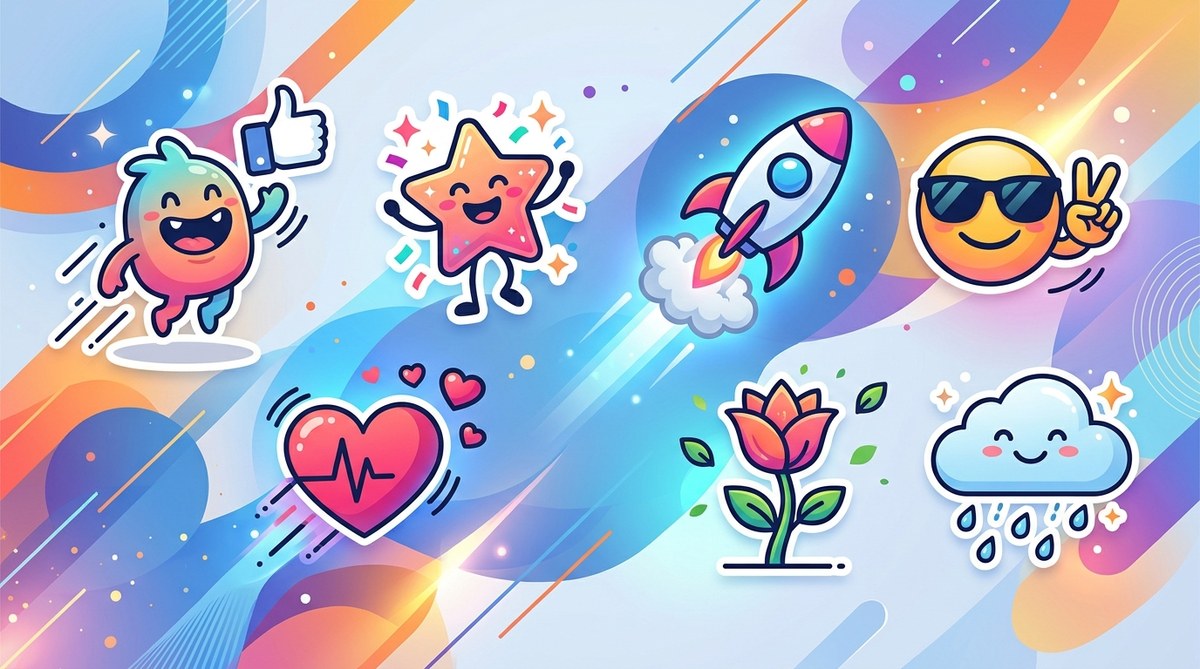
Social media feeds move fast. Static images can get lost in the noise. Animated stickers grab attention and help brands feel more human. If you are a content creator, graphic designer, or digital marketer, vector art gives you the perfect foundation for building custom stickers that loop, bounce, and wink on platforms like Instagram and TikTok. Because vector files are based on math instead of pixels, they stay sharp at any size. That means your sticker looks crisp on a tiny story badge or a full-screen Reel. In this guide, you will learn how to turn vector artwork into animated stickers that your audience will actually want to tap on.
Vector art is the smartest starting point for animated social media stickers because it scales perfectly and keeps file sizes small. By combining simple shapes, layers, and motion principles like bounce or fade, you can produce stickers that feel native to each platform. The process involves three stages: design, animate, and export. Master these steps and you will save hours while building a library of reusable, on-brand assets.
Why Vector Art Works Best for Stickers
Raster images lose quality when you resize them. Vector art does not. That is a huge advantage when you are designing for multiple placements. A sticker might appear as a tiny icon next to a username and then as a large overlay on a video. With vectors, the edges stay smooth every time.
Another reason is file size. Animated stickers need to load fast. Vector-based animations are lightweight compared to video files or heavy GIFs. Platforms like Instagram prefer smaller file sizes for stickers because they layer over user content. If your sticker takes too long to load, the platform may reject it or compress it badly.
Vector art also makes it easy to edit colors, swap elements, or create variations. You can design one base sticker and then change the color palette for different holidays or campaigns without redrawing anything. That kind of flexibility is gold for social media managers who need fresh content every week.
Tools You Can Use to Create Vector Stickers
You do not need a full animation studio to make animated stickers. Most designers already own one or two of these tools. Here are the most popular options for creating vector art animated social media stickers in 2026.
- Adobe Illustrator remains the industry standard for vector design. Its timeline panel and asset export features let you prepare layers for animation.
- Affinity Designer is a strong alternative with a one-time purchase model. It supports layers and can export SVG sequences.
- Figma works well for collaborative teams. You can design vector stickers and then use plugins to export frames for animation.
- Procreate is raster-based, but you can convert your line art to vectors using the app’s vector layer mode or by exporting to Illustrator.
- Inkscape is a free, open-source vector editor. It handles SVG exports cleanly, which is useful for web-based animation tools.
Once your vector design is ready, you move the layers into an animation tool. Common choices are Adobe After Effects, Rive, or even mobile apps like Alight Motion. The key is keeping your vector layers organized so the animation software understands which parts should move independently.
A Simple Process to Animate Your First Sticker
Let us walk through a realistic example. Imagine you want to create a sticker of a coffee cup that winks and releases a small steam curl. Here is how you would build it.
-
Design the base vector art. Open your vector software and draw the coffee cup. Keep the body, the handle, the lid, and the steam on separate layers. Name each layer clearly. This step is critical. If you merge everything into one shape, you cannot animate individual parts later.
-
Export layers as individual SVG files or a single layered SVG. Most animation tools import SVG layers well. Make sure your artboard is square and sized to at least 500 by 500 pixels. Social platforms often crop stickers into circles or rounded squares, so center your design.
-
Import the vector layers into your animation tool. In After Effects, import the SVG as a composition. Each layer becomes a separate timeline item. In Alight Motion, you can import a layered PSD or SVG and see each piece as a separate object.
-
Add motion to each part. Animate the eyelid to close and open. Make the steam scale up and fade out in a loop. Keep the movements subtle. A sticker that moves too fast or too wildly can distract from the main content.
-
Set the loop timing. Social media stickers usually loop continuously. Set your timeline to loop every two to three seconds. Export as an APNG or a transparent WebM file depending on the platform requirements.
-
Test the sticker on your phone. Upload the file to Instagram or TikTok using the sticker upload feature. Check that the transparency works and the animation plays smoothly. Adjust the timing if it feels sluggish.
Common Mistakes to Avoid
Even experienced designers make errors when preparing vector art for animation. The table below outlines the most common pitfalls and how to fix them.
| Mistake | Why It Hurts the Sticker | How to Fix It |
|---|---|---|
| Merging all layers into one shape | You cannot animate individual parts | Keep each moving element on its own layer |
| Using complex gradients or patterns | Increases file size and may break during export | Use flat colors or simple linear gradients |
| Forgetting to set a transparent background | White box appears around the sticker | Export with alpha channel or transparent PNG |
| Making the animation too long | Viewers lose interest before the loop ends | Keep loops under three seconds |
| Ignoring platform size limits | Sticker gets rejected or compressed | Check each platform’s maximum file size (usually under 1 MB) |
Expert advice: Always name your layers in English before exporting. Animation tools read layer names as object labels. If your layers are named “Layer 1” and “Layer 2 copy,” you will waste time hunting for the right piece. Use names like “eye_left” and “steam_cloud” so the transition into the animation tool feels natural.
How to Match Sticker Style with Your Brand
Consistency matters on social media. If your brand uses a specific color palette and illustration style, your stickers should reflect that. Vector art makes this easy because you can save swatches and reuse them across projects.
Start by defining a set of three to five colors that match your brand guidelines. Use those colors for all sticker elements. Keep the line weight consistent. If your main illustrations use a 2px stroke, apply the same stroke to your stickers.
Think about the emotions your sticker should trigger. A playful bounce works for a brand that sells candy or toys. A gentle fade works better for a wellness or meditation account. Match the movement style to the personality of your brand.
You can also create themed sticker packs. A coffee shop might release a set of seasonal stickers for fall featuring pumpkin spice cups and falling leaves. A fitness brand could create workout milestone stickers for followers to use in their stories. Themed packs encourage user-generated content because followers love showing off custom stickers from their favorite brands.
For more inspiration on building a consistent visual identity, check out this guide on how to craft unique vector art for brand identity in 2026. It covers color theory and style guides in more depth.
Exporting for Instagram and TikTok
Each platform has specific requirements for animated stickers. Here are the current best practices for 2026.
- Instagram supports APNG files for stickers. Export your animation as an APNG with a transparent background. Keep the resolution at 500×500 pixels and the file size under 1 MB. Instagram will crop the sticker into a circle, so keep the main subject in the center.
- TikTok accepts animated stickers through its effect system. You can upload a transparent WebM or APNG file. The platform also supports Lottie animations, which are JSON-based vector animations. Lottie files are extremely small and play smoothly on all devices.
- Snapchat uses custom asset files. You will need to use Snapchat’s Lens Studio to upload vector animations. The process is more technical, but the result is a polished sticker that millions of users can access.
If you are unsure which format to choose, APNG is the safest bet for most social platforms. It supports transparency and loops automatically. Many vector animation tools offer a direct APNG export option.
Building a Workflow That Saves Time
Creating one sticker is fun. Creating twenty stickers for a campaign requires a system. Here is a bulleted list of workflow habits that will help you produce vector art animated social media stickers faster.
- Create a master template file with your brand colors, standard canvas size, and common layer names.
- Use symbols or components in your vector software. When you update one symbol, all instances update automatically.
- Batch export layers using scripts or actions. In Illustrator, you can record an action that exports each artboard as a separate SVG.
- Keep an archive of past sticker animations. You can remix old elements instead of starting from scratch.
- Test on a secondary account before publishing. A quick test can catch transparency issues or lag.
If you want to speed up your entire design process, read this article on 5 vector art workflow hacks to speed up your design process in 2026. It includes tips for keyboard shortcuts and batch processing.
How to Promote Your Stickers
Once you have a set of animated stickers, you need people to use them. Here are a few promotion strategies that work well.
- Post a story showing the sticker in action. Use the sticker yourself and encourage followers to search for it.
- Create a tutorial video showing how to find and apply the sticker. Short how-to content performs well on TikTok.
- Collaborate with other creators. Ask them to feature your sticker in one of their stories.
- Add the sticker to your link in bio page. Some tools let visitors save stickers directly to their Instagram account.
- Run a small giveaway. Ask followers to post a story using your sticker and tag your account. Pick a winner each week.
Promotion does not have to be complicated. The best marketing for a sticker is seeing it used by real people in real stories.
The Future of Vector Stickers on Social Media
Platforms are investing more in augmented reality and interactive content. Vector-based stickers fit perfectly into that direction because they are lightweight and scalable. Lottie animations are becoming the standard for web and app interfaces, and social platforms are adopting them too.
If you learn to create vector art animated social media stickers now, you are building a skill that will stay relevant as platforms evolve. The tools may change, but the principles of clean vector design and subtle animation will remain the same.
For a broader look at where vector art is heading, check out this article on top trends in vector artwork that every designer should know. It covers emerging styles and technical shifts that will affect sticker design in the coming years.
Start Small and Build Your Library
You do not need to produce a full sticker pack overnight. Pick one simple idea. A bouncing heart. A blinking eye. A waving hand. Design it, animate it, and upload it to your platform of choice. See how it performs. Learn from the feedback. Then make another one.
Each sticker you create teaches you something about timing, file size, and audience behavior. Over time, you will build a library of vector art animated social media stickers that your followers recognize and love. That is the kind of asset that builds brand loyalty without feeling like advertising. It is just a fun little sticker that makes someone smile.