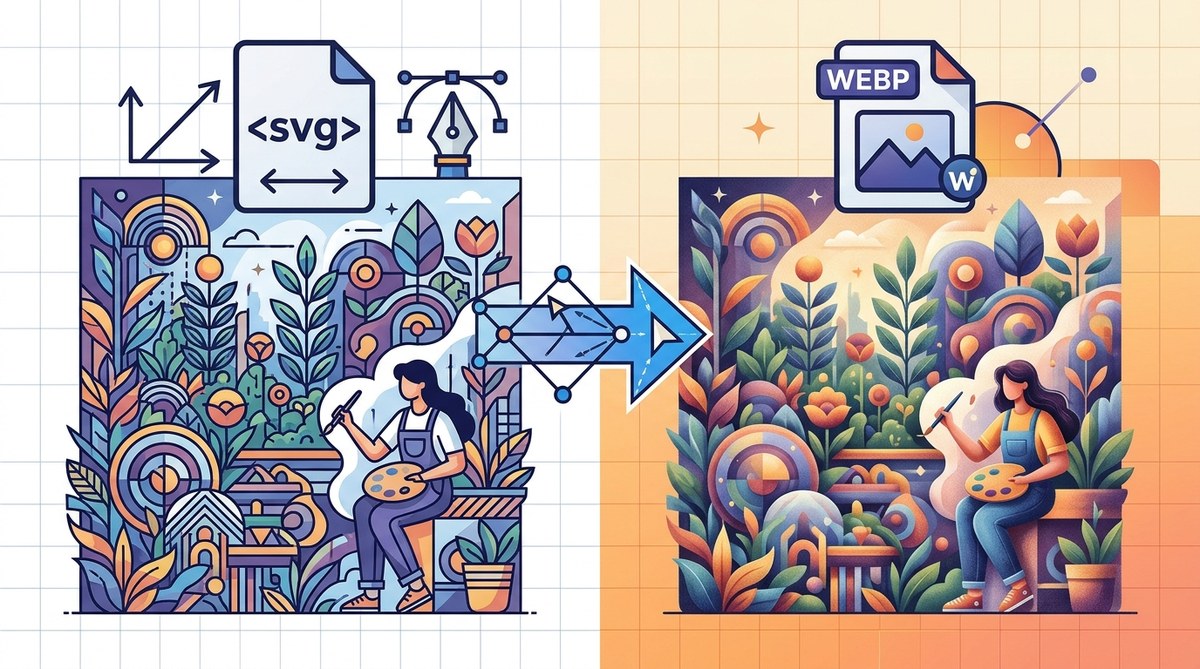
You are building a portfolio site for a client who loves clean, scalable vector art. You export a detailed cityscape illustration as an SVG and a WebP. The SVG looks razor-sharp at every zoom level. The WebP loads almost instantly on a mobile connection. Both are great, but they serve different purposes. Choosing between SVG and WebP for finished illustration work is not about picking a winner. It is about matching the right tool to the job.
SVG is the best format for illustrations that need to scale infinitely, remain editable, or include interactive elements. WebP excels when file size and loading speed matter most, especially for complex, photorealistic illustrations. Use SVG for logos, icons, and line art. Use WebP for detailed digital paintings and rich gradients. Both support transparency, but only SVG stays fully editable in vector software.
Understanding SVG for Illustration Work
SVG stands for Scalable Vector Graphics. It is a vector format, which means it uses mathematical paths instead of pixels. This gives you a few superpowers.
Infinite scalability. You can zoom in on an SVG illustration until you see individual anchor points, and there is zero pixelation. This is critical for illustrations used on billboards, business cards, or retina displays.
Editability. An SVG file is essentially XML code. You can open it in a text editor, change a color value, or adjust a path coordinate. This makes it perfect for collaborative workflows where developers and designers need to tweak assets without opening Illustrator.
Small file size for simple art. A flat vector icon with 20 paths will be smaller as an SVG than as any raster format. But this advantage fades as the illustration gets more complex.
Transparency is native. SVG handles transparency at the object level. You can have a gradient that fades from solid to 50% opacity, and it renders perfectly on any background.
Understanding WebP for Illustration Work
WebP is a modern image format developed by Google. It is a raster format, meaning it stores pixel data. But it uses advanced compression algorithms to make files much smaller than PNG or JPEG.
Lossy and lossless compression. You can save a WebP with lossy compression for smaller files or lossless for pixel-perfect quality. This gives you control over the balance between quality and file size.
Excellent for complex illustrations. If your illustration has thousands of overlapping shapes, gradients, and effects, the SVG file size can balloon. WebP handles that complexity efficiently.
Transparency support. WebP supports alpha transparency, just like PNG. This means you can place a WebP illustration on any colored background without a bounding box.
Browser support. As of 2026, WebP is supported by all major browsers. Chrome, Firefox, Safari, and Edge all render WebP files without issues.
Comparing Quality, Transparency, and Browser Support
Let us put these two formats side by side for the specific needs of finished illustration work.
| Feature | SVG | WebP |
|---|---|---|
| Scalability | Infinite. No quality loss at any size. | Limited to original resolution. Scaling up causes pixelation. |
| File size (simple art) | Very small. Often under 10 KB for icons. | Larger for simple art due to raster overhead. |
| File size (complex art) | Can be large. Thousands of paths add weight. | Smaller. Compression handles complexity well. |
| Transparency | Full alpha support at object level. | Full alpha support for the whole image. |
| Editability | Fully editable in vector software and text editors. | Not editable. Must return to source file. |
| Browser support | Universal. Supported since Internet Explorer. | Universal in modern browsers as of 2026. |
| Animation | Supports CSS and SMIL animations natively. | Supports animated WebP (like a GIF but better). |
| Color depth | 16.7 million colors (no profile limits). | Up to 16.7 million colors with lossless. |
| Best for | Logos, icons, line art, interactive graphics. | Digital paintings, gradients, photorealistic art. |
When to Choose SVG for Finished Illustrations
SVG shines in specific scenarios. Here is when you should reach for it.
-
Your illustration is mostly flat shapes. Think of a logo, an icon set, or a character design with solid colors and clean lines. SVG will keep the file tiny and the quality perfect.
-
You need the illustration to be responsive. An SVG can scale to fit any container without media queries or multiple image sizes. This is a lifesaver for hero images and background elements.
-
You want to style or animate the illustration with CSS. You can change the fill color of an SVG shape on hover. You can animate paths. You can make parts of the illustration interactive. WebP cannot do any of this.
-
You or a client might need to edit the file later. If you send an SVG, the client can open it in Illustrator, Affinity Designer, or even a text editor. WebP is a dead end for editing.
Expert advice: If your illustration has fewer than 500 individual shapes and uses mostly solid colors, SVG is almost always the better choice. The file size will be smaller, and the quality will be higher at every screen size.
When to Choose WebP for Finished Illustrations
WebP pulls ahead in other situations. Consider it when the following apply.
-
Your illustration is highly detailed. A digital painting with soft gradients, texture brushes, and hundreds of layers will create an SVG file that is massive and slow to render. WebP keeps it manageable.
-
Loading speed is your top priority. A hero image on a landing page needs to load in under a second. WebP with lossy compression can cut file size by 30% compared to PNG without visible quality loss.
-
You are serving the illustration on a content delivery network. WebP files are smaller, which means lower bandwidth costs and faster delivery to users around the world.
-
The illustration does not need to be scaled up. If you export at 2x resolution for retina displays, WebP will look sharp on most screens without the overhead of SVG.
How to Decide: A Practical Workflow
Use this numbered process the next time you export a finished illustration.
-
Audit your illustration. Count the number of distinct shapes. Check for gradients, drop shadows, and raster effects. If the illustration is mostly flat vectors, lean toward SVG. If it uses heavy effects, lean toward WebP.
-
Test both formats. Export your illustration as an SVG and as a WebP. Compare file sizes. Compare how they look at different zoom levels on your phone and desktop.
-
Consider the end use. Is the illustration going into a codebase where developers will need to adjust colors? Use SVG. Is it going into a CMS where it will be displayed at a fixed size? Use WebP.
-
Check your delivery requirements. Some platforms handle SVG better than others. Squarespace and Wix support SVG natively. Some older ecommerce platforms may strip SVG tags. WebP is safer for those cases.
Common Mistakes and How to Avoid Them
Even experienced designers make these errors. Watch out for them.
- Using SVG for photorealistic illustrations. The file will be enormous and slow to render. Export as WebP instead.
- Using WebP for logos that need to scale. The logo will look blurry on a billboard. Always use SVG for logos.
- Forgetting to optimize SVG code. Many vector editors export SVG with unnecessary metadata. Run your SVG through a tool like SVGOMG to clean it up.
- Assuming WebP is always smaller. For simple vector art, SVG is almost always smaller. Test before you commit.
- Ignoring fallback formats. If you use WebP, provide a PNG fallback for older browsers. The performance gain is worth the extra file.
The Future of These Formats in 2026
SVG is not going anywhere. It is the backbone of responsive web design and accessible graphics. More designers are learning to hand code SVG for interactive data visualizations and animated illustrations.
WebP continues to gain adoption. Image editing tools like Photoshop and Affinity Photo now support WebP export natively. Content delivery networks are optimizing for it. For finished illustration work that prioritizes speed over editability, WebP is becoming the default.
Both formats have a place in your toolkit. The question is not which one is better. The question is which one is better for this specific illustration, this specific client, and this specific use case.
Making the Call on Your Next Project
The next time you finish an illustration, run it through the decision workflow above. Export a test of each format. Look at the file sizes. Zoom in on the details. Think about who will use the file and how.
If you need infinite scalability and editability, go with SVG. If you need fast loading and small file sizes for complex art, go with WebP. And if you want to cover all bases, provide both. The client will appreciate having the right format for each situation.
For more guidance on preparing your vector work for different outputs, check out our guide on how to export vector art that actually looks right everywhere. And if you are building a branding package, our article on what to include in a professional vector logo package at client handoff will help you deliver files that work in every context.
Your illustrations deserve to look their best. Choose the format that serves them well, and your work will shine on every screen.