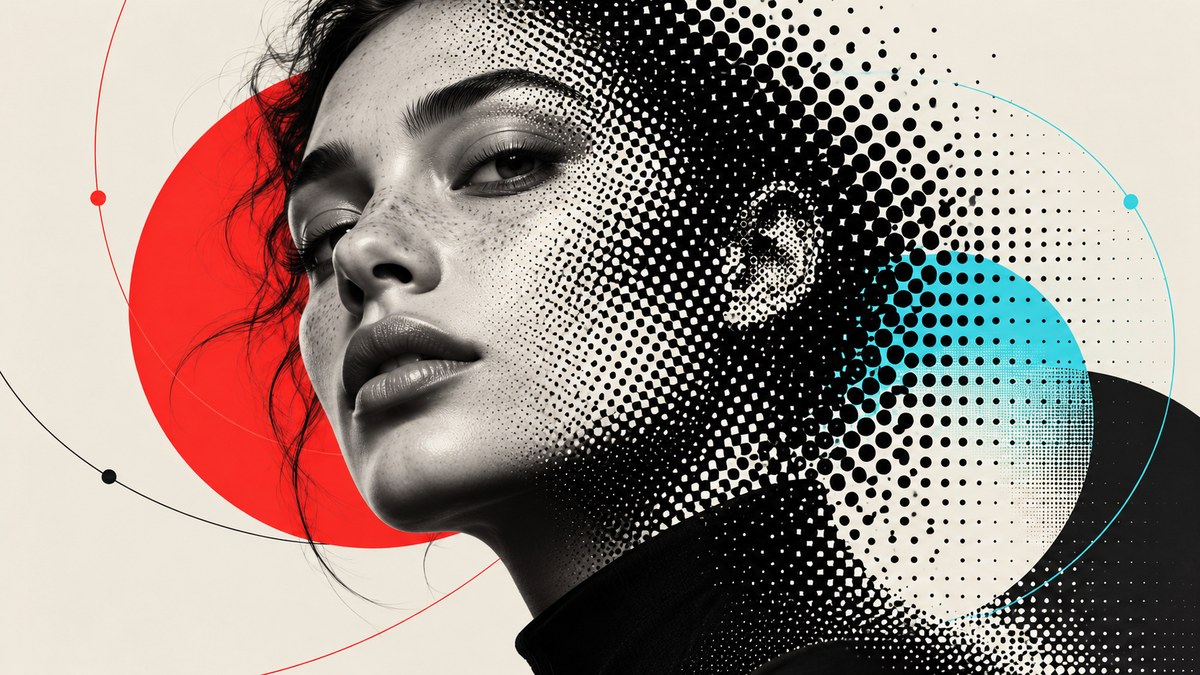
You are staring at a photograph you want to use in a poster. The client wants it to be fully scalable. No pixelated edges at billboard size. No embedded raster files. And they want that classic halftone look, the kind you see in vintage print or gritty editorial work. The instinct is to convert the image to grayscale, apply a bitmap effect, and call it done. But that creates a raster file, which defeats the purpose. Vector halftones solve this problem. They let you simulate photographic tones using only paths, shapes, and transparency. No pixels. No bitmaps. Just clean, scalable vectors that look like a photograph when you squint.
Vector halftones let you recreate photographic depth and shading using only vector shapes, no raster images. By controlling dot size, spacing, and opacity, you can simulate continuous tone in pure SVG or AI files. This technique keeps your artwork resolution-independent, perfect for large format print, merchandise, and branding where scaling matters.
Why Vector Halftones Matter in 2026
Raster halftones have been around since the days of newsprint. You take a photo, turn it into dots, and print it. The problem is that those dots are locked into a grid of pixels. Scale them up and you get jagged edges. Vector halftones work differently. Each dot is a circle, an ellipse, or a custom shape that stays crisp at any size. This makes them ideal for modern workflows: responsive web design, large format signage, and merchandise that needs to look good on a phone screen and a billboard.
A vector halftone tutorial is not just a technical trick. It is a creative tool. You can use it to add texture to flat vector illustrations, create stylized portraits, or build a signature look for a brand. When you combine halftones with other vector techniques, you get a style that stands out from the typical smooth gradient work.
The Core Concept: Simulating Tone With Dot Density
A photograph contains millions of tones. A vector halftone reduces those tones to a pattern of dots. Dark areas have large dots packed close together. Light areas have small dots with lots of space between them. The human eye blends these dots into a continuous tone when viewed from a distance. The trick is controlling the relationship between dot size, dot spacing, and the brightness of the original image.
Here is the method broken down into a numbered process:
- Start with a high-contrast reference image. A photo with strong highlights and shadows works best. Low contrast images produce muddy halftones.
- Place the image in your vector software and reduce its opacity to 30%. Lock the layer. This is your tracing guide.
- Create a grid of circles that covers the entire image area. Use a pattern or a script to generate evenly spaced dots. The grid density determines your halftone resolution.
- Adjust the size of each circle based on the brightness of the underlying photo. Dark areas get larger circles. Light areas get smaller circles or no circles at all.
- Remove the reference image. What remains is a pure vector halftone.
This process can be done manually for small areas or automated with scripts for full images. The result is a file that contains only vector shapes.
Techniques for Building Vector Halftones
There are several ways to build vector halftones. Each has its own strengths depending on the look you want.
Manual Dot Placement
This is the most hands-on method. You place individual circles by hand, scaling each one to match the reference. It is slow but gives you total control. Use this for portraits or logos where you want to preserve specific details.
Pattern Swatch Method
Create a pattern swatch of dots and apply it to a shape. Then use a clipping mask to reveal only the areas you want. This works well for backgrounds and textures, but it does not respond to the underlying image tones. You have to create multiple swatches for different densities.
Script-Based Automation
Scripts like the “Vector Halftone Generator” for Illustrator can process a placed image and output a grid of scaled circles. This is the fastest method for full images. You can adjust the dot count and spacing to fine-tune the result.
Opacity Halftones
Instead of scaling dots, keep all dots the same size and vary their opacity. This creates a softer, more photographic look. It is not a true halftone in the traditional sense, but it simulates the effect without altering the dot grid.
Common Mistakes to Avoid
Even experienced designers make errors when building vector halftones. Here is a table of the most frequent mistakes and how to fix them.
| Mistake | Why It Happens | How to Fix It |
|---|---|---|
| Muddy midtones | Using a low contrast reference image | Apply a curves adjustment to the reference before tracing |
| Jagged dot edges | Exporting at low resolution | Keep the file in native vector format; avoid raster export |
| Inconsistent spacing | Manual placement without a grid | Use a grid or pattern to lock dot positions |
| File bloat | Too many dots for the image size | Reduce dot count; use larger dots for simple shapes |
| Lost detail in highlights | Dots disappear completely | Set a minimum dot size of 0.5 pt to preserve texture |
Expert advice: “Always test your halftone at the final output size before committing. A halftone that looks perfect on screen at 100% might turn into a solid block when printed at 300 dpi. Print a test piece at actual size to check dot density.”
Tools and Software for Vector Halftones
Adobe Illustrator remains the standard for vector halftone work. Its scripting capabilities and pattern tools make it the most flexible option. But other tools can also produce vector halftones.
- Adobe Illustrator: Use the “Object Mosaic” effect or third-party scripts for automation. Manual placement works well with the “Align” panel.
- Affinity Designer: The “Pixel Persona” can generate halftone-like patterns, but the vector tools are less mature for this specific task.
- Inkscape: Free and open source. Use the “Tiled Clones” feature to create dot grids, then scale manually.
- Custom SVG generation: Write a script in JavaScript or Python that outputs SVG circles based on an image’s pixel brightness. This gives you complete control.
If you are new to vector workflows, check out the guide on mastering vector art techniques for stunning digital creations to build a foundation before diving into halftones.
A Practical Workflow for Adobe Illustrator
Let me walk you through a reliable workflow that balances speed and control. This works for any image you want to convert.
- Open your reference image in Illustrator. Select it and go to “Object” > “Create Object Mosaic.” Set the number of tiles to match your desired dot count. For a standard portrait, 50 columns by 60 rows is a good starting point.
- Check the box that says “Use Ratio” to keep the tiles proportional. Click OK. This creates a grid of colored rectangles.
- Ungroup the result. Each rectangle is now a separate object.
- Select all rectangles. Go to “Object” > “Transform” > “Scale.” Set uniform scaling and enter a value that matches the average brightness. You may need to tweak this. The goal is to shrink each rectangle down to a circle-like shape.
- Convert all rectangles to circles by applying a corner radius equal to half the width. In Illustrator, use “Effect” > “Stylize” > “Round Corners.” Set the radius to 50% of the tile size.
- Expand the appearance. You now have a grid of circles that vary in size based on the original image tones.
- Delete the reference image. Your vector halftone is complete.
This method is not perfect for every image. It works best with high contrast photos. For low contrast images, you may need to adjust the curves before step one.
When to Use Vector Halftones
Vector halftones are not a replacement for all raster graphics. They have specific use cases where they shine.
- Large format prints: Posters, banners, and billboards where scaling is critical.
- Merchandise: T-shirts, hats, and bags where the design needs to hold up at different sizes.
- Branding: Logos and identity systems that use halftone textures as a signature element.
- Editorial illustration: Magazine spreads and book covers that want a retro print feel.
- Screen printing: Halftones translate directly to screen printing separations.
For merchandise design, you might want to combine halftones with other styles. The article on 5 vector art styles perfect for merchandise design offers ideas for integrating halftones into product artwork.
Experimenting With Non-Circular Dots
Who says halftones have to use circles? You can use any shape as your dot. Triangles, diamonds, stars, and even custom glyphs create different textures. The same brightness-to-size mapping applies. A dark area gets larger triangles. A light area gets smaller ones. This opens up creative possibilities for patterned illustrations.
Try using a shape that relates to the subject. For a portrait of a musician, use musical notes. For a nature scene, use leaf shapes. The halftone effect still works, but the texture becomes part of the art.
Building a Portfolio With Halftone Work
Vector halftones are a portfolio differentiator. Most designers rely on smooth gradients and flat colors. Halftones show that you understand texture, print, and scaling. They demonstrate technical skill and creative thinking. If you are building a client base, halftone pieces can set you apart from the competition.
When you present halftone work, show a detail shot at 200% zoom. This highlights the vector nature of the dots. Clients love seeing that the file stays crisp at any size. It is a selling point for large format projects.
For more on portfolio strategy, read the guide on how to build a vector art portfolio that attracts clients.
Pushing the Technique Further
Once you master basic halftones, you can layer them for color. Create separate halftone layers for cyan, magenta, yellow, and black. Overlap them with different rotation angles. This simulates four-color process printing entirely in vectors. It is more work, but the result is stunning.
You can also animate halftones. In After Effects, import your vector halftone and animate the dot sizes. The dots pulse and shift, creating a living texture. This works well for motion graphics and social media content.
Your Next Step
Vector halftones are a technique worth adding to your toolbox. They solve a real problem: how to make scalable, photographic-looking art without raster files. Start with a simple portrait. Use the workflow I outlined above. Make mistakes. Adjust the dot count. Try different shapes. The more you practice, the more natural it becomes.
The design world in 2026 is moving toward resolution-independent workflows. Clients want assets that work everywhere. Vector halftones fit that demand perfectly. They give you the look of photography with the flexibility of vectors. That is a rare combination.
So open Illustrator, grab a photo, and build your first vector halftone today. You will be surprised at how much depth you can create with nothing but circles.