You just finished a logo in Adobe Illustrator. The client loves it on your screen. You export the file, open it on your phone, and suddenly that deep navy looks almost purple. Your print proof arrives and the bright red you chose is now a dull brick tone. Sound familiar?
You are not alone. This color shift problem hits every vector artist at some point. The frustrating part is that your monitor is probably the culprit, not your file. Most displays ship from the factory looking overly vibrant and cool. They are tuned to catch your eye on a store shelf, not to show accurate flat colors for vector work.
The good news? You do not need to guess anymore. The best monitor calibration for vector art is not the same as what a photographer uses. You need a setup that locks in flat, even color across the entire screen. Let me show you exactly what that looks like.
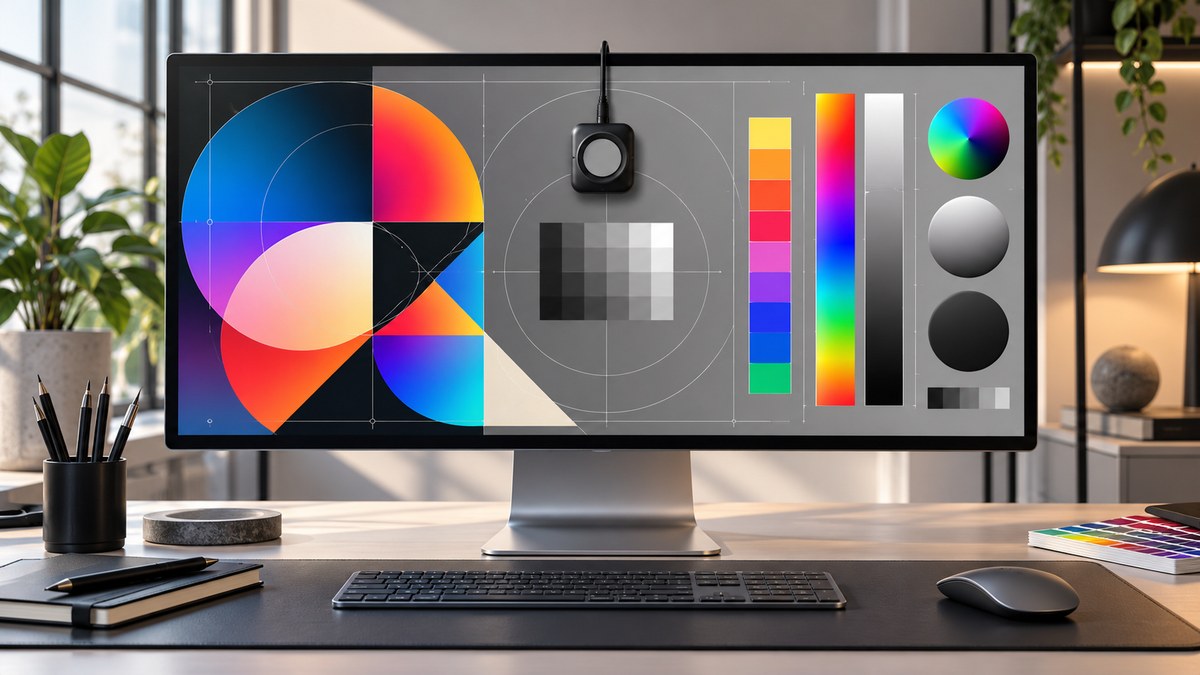
Vector art demands flat, consistent color across every inch of your screen. Unlike photo editing, you do not need wide gamut for subtle skin tones. You need a calibration tool that locks in a stable white point and even luminance. A Datacolor SpyderX Pro or X Rite i1Display Studio paired with a 99% sRGB monitor gives you the most reliable results for flat vector graphics. Calibrate every two weeks for best results.
Why Vector Art Needs a Different Calibration Approach
Photo editors spend hours chasing smooth gradients and natural skin tones. They need wide gamut monitors that cover Adobe RGB or DCI-P3. Vector art is different. Your work relies on large areas of solid color, sharp edges, and precise hex values. You do not need a monitor that can show 1.07 billion colors. You need one that shows the right 16.7 million colors without any drift.
When you pick a color in Illustrator using a specific hex code, that value should look identical on your screen, your export, and your client’s device. The best monitor calibration for vector art focuses on three things:
- White point stability. A monitor that shifts from 6500K to 7000K over a few hours will make your whites look blue.
- Gamma consistency. Flat vector graphics look muddy if gamma is off even by 0.1.
- Luminance uniformity. If the top of your screen is brighter than the bottom, your color decisions will be wrong.
Photographers calibrate for smooth transitions. Vector artists calibrate for flat accuracy. That distinction changes which tools and settings you should use.
The Two Best Calibration Tools for Vector Artists in 2026
You have two reliable choices right now. Both work well. The difference comes down to software features and price.
Datacolor SpyderX Pro is the most popular option for vector designers. The sensor reads your screen in under two minutes. It creates a custom ICC profile that your operating system loads at startup. The software lets you set your target white point to 6500K and gamma to 2.2, which is the standard for web and most print work. The SpyderX Pro costs around $170 and works with any modern monitor.
X Rite i1Display Studio is the other strong contender. It uses a different sensor technology that some users find more consistent with OLED panels. The software is slightly more hands on, which gives you more control over the final profile. It costs about $220. If you work on a laptop with an OLED screen, this might be your better option.
Both tools do the same core job. They measure your screen’s output and create a correction profile. The question is which one fits your workflow. For most vector artists working on standard IPS monitors, the SpyderX Pro offers the best balance of speed and accuracy.
| Tool | Price (2026) | Best For | Calibration Time |
|---|---|---|---|
| Datacolor SpyderX Pro | $170 | IPS monitors, sRGB workflow | 2 minutes |
| X Rite i1Display Studio | $220 | OLED screens, advanced control | 4 minutes |
| Built in macOS calibration | Free | Laptop screens only | 10 minutes |
If your budget is tight, you can use your operating system’s built in calibration tool. It will not be as accurate, but it is better than nothing. The macOS display calibration wizard walks you through adjusting brightness and contrast by eye. It is a decent starting point until you can buy a hardware sensor.
How to Calibrate Your Monitor for Vector Art Step by Step
Once you have a calibration tool, the process is straightforward. Follow these steps to get the most accurate flat color for your vector work.
-
Warm up your monitor. Turn your display on at least 30 minutes before you calibrate. The backlight needs time to stabilize. If you calibrate a cold monitor, the profile will be wrong after an hour of use.
-
Set your room lighting. Calibrate in the same lighting conditions where you normally work. If you have a window behind your desk, close the blinds. If you use a desk lamp, keep it on. Consistency matters more than darkness.
-
Run the calibration software. Hang the sensor on your screen as instructed. The software will display a series of colors and measure how your monitor reproduces them. Do not touch the screen during this process.
-
Choose your target settings. For vector art, set your white point to 6500K (D65) and gamma to 2.2. Set luminance to 120 cd/m2 for a standard office environment. If your room is very bright, you can go up to 140 cd/m2.
-
Save the profile. The software will create an ICC profile and install it automatically. Your monitor will now show colors more accurately.
-
Verify with a test image. Open a vector file with known color values. Check that pure white (#FFFFFF) looks white and not blue. Check that a neutral gray (#808080) looks even across the whole screen.
Expert advice: “Do not rely on your monitor’s built in calibration menu. Those sliders for red, green, and blue are coarse adjustments. A hardware sensor measures actual output and creates a precise correction. The difference is like using a measuring tape instead of guessing by eye.” Sarah K. display calibration specialist
Common Calibration Mistakes That Ruin Flat Vector Color
Even with a good calibration tool, you can make mistakes that hurt your vector work. Here are the most common ones and how to fix them.
| Mistake | Why It Hurts Vector Art | The Fix |
|---|---|---|
| Calibrating once and forgetting | Monitors drift over time | Recalibrate every 2 weeks |
| Using a wide gamut setting | Colors get oversaturated | Set monitor to sRGB mode before calibration |
| Ignoring ambient light changes | Profile becomes wrong mid day | Calibrate in your typical work lighting |
| Not disabling auto brightness | Profile fights with dynamic adjustments | Turn off any adaptive brightness feature |
| Using the same profile for print and web | Different white points needed | Create separate profiles if you do both |
The biggest mistake I see vector artists make is buying a monitor marketed for photo editing and assuming it is perfect out of the box. A high end monitor still needs calibration. The factory settings are tuned to look impressive, not accurate.
What Monitor Specs Actually Matter for Vector Color
You do not need a $2,000 professional reference monitor for vector art. You need a monitor that hits a few specific targets.
- 99% sRGB coverage. This is the color space for web and most print. Vector artists rarely need Adobe RGB. If your monitor covers 99% sRGB, you are set.
- IPS panel. IPS panels have better viewing angles and more even color than VA or TN panels. This matters when you lean back to look at your overall composition.
- Stable backlight. Look for monitors with DC dimming instead of PWM. Pulse width modulation can cause flicker that makes colors look inconsistent.
- Brightness of at least 250 cd/m2. You need headroom to calibrate to 120 cd/m2 without maxing out the backlight.
A monitor like the Dell U2724D or the ASUS ProArt PA278CV hits these specs for under $400. Pair either one with a SpyderX Pro and you have a setup that beats many far more expensive options.
How to Keep Your Calibration Working Over Time
Calibration is not a one time fix. Your monitor ages. The backlight degrades. The color phosphors shift. If you want consistent flat color for your vector projects, you need a maintenance routine.
- Recalibrate every two weeks. Set a recurring reminder on your calendar. The SpyderX software can actually remind you when it is time.
- Keep your room lighting consistent. If you move your desk or change your light bulbs, recalibrate immediately.
- Do not change your monitor settings after calibration. If you adjust brightness or contrast, you invalidate the profile. Leave the monitor’s OSD settings alone.
- Update your calibration software. Both Datacolor and X Rite release updates that improve sensor accuracy. Check for updates every few months.
When you export your vector work, you can trust what you see. That is the whole point. No more second guessing whether that blue is actually blue.
The Connection Between Calibration and Your Export Workflow
Calibration is only half the battle. You also need to make sure your export settings match your calibrated display. If you work in sRGB and export in Adobe RGB, the colors will shift. If your document profile says CMYK but your monitor shows RGB, you will never get accurate previews.
Set your Illustrator color settings to “North America General Purpose 2” or “sRGB IEC61966-2.1”. This keeps your document and your display in the same color space. When you export for web, use “Save for Web” and check “Convert to sRGB”. When you export for print, work with your print shop to get their ICC profile and soft proof in Illustrator before you send the file.
For a deeper look at how to handle exports without losing color fidelity, check out this guide on preparing vector art for print with clear proofs. It walks through the entire handoff process.
Your Monitor Calibration Setup for 2026
You do not need to overthink this. The best monitor calibration for vector art comes down to a simple formula:
A 99% sRGB IPS monitor + a hardware calibration tool + a bi weekly recalibration habit.
That is it. No need for a $5,000 Eizo. No need for a color spectrophotometer. No need to obsess over delta E values below 1.0. Vector art is flat, intentional, and mathematical. Your calibration setup should match that simplicity.
If you are just starting out, buy the Datacolor SpyderX Pro first. It works with almost any monitor and gives you instant improvement. If your monitor is older than five years, consider upgrading to something like the Dell U2724D. The combination will cost you around $550 total and will serve you for years.
Stop Guessing and Start Trusting Your Screen
The frustration of color shifts is real. It wastes time, creates rework, and erodes client trust. But the fix is straightforward. Get a calibration tool. Learn the settings that matter for flat vector color. Build a habit of regular recalibration.
Once you do, you will never look at your screen the same way. You will open Illustrator, pick a color, and know that what you see is what your client will get. No more surprises. No more late night emails asking why the logo looks different on the business card.
Your vector art deserves to be seen the way you intended. Calibration makes that possible. Start today. Run your first calibration. Set your reminder for two weeks from now. Your future self will thank you when that next export lands exactly right.