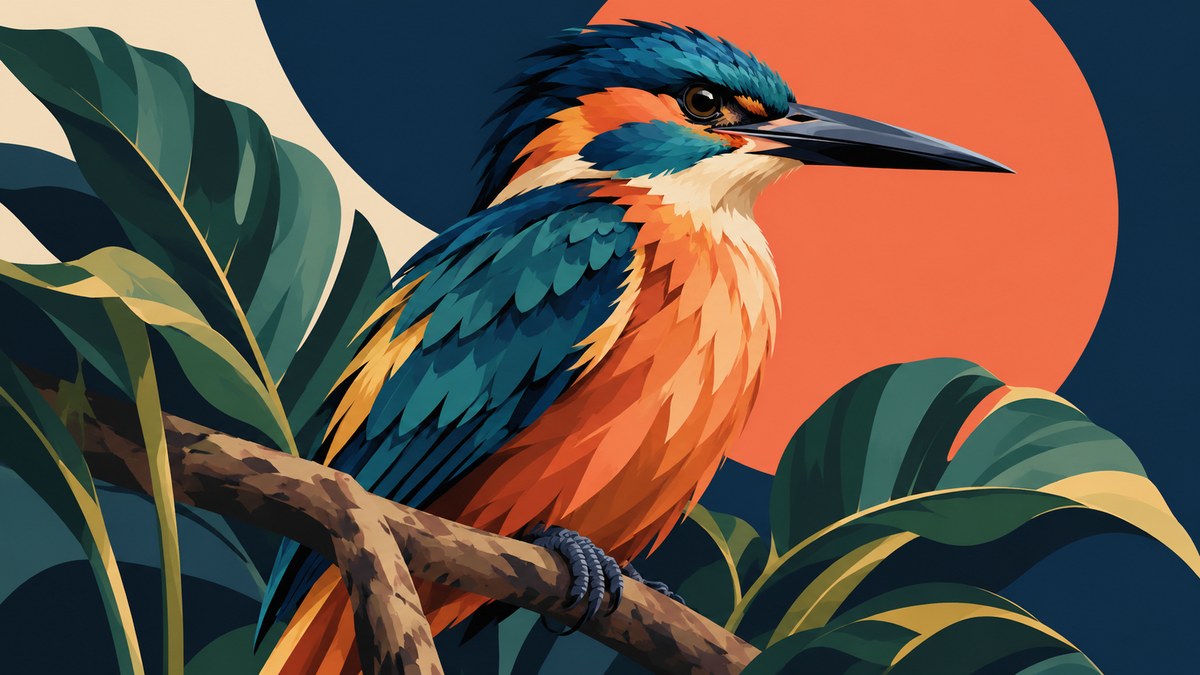
Can you create realistic vector art without gradients? Yes. And it might look better than anything you have made with a smooth blend. Gradients are a crutch. They give you an easy transition from light to dark, but they also strip away the handcrafted feel that makes vector art stand out. If you are tired of flat results and want to build depth, texture, and realism using only solid fills, this guide is for you.
Realistic vector art without gradients is possible by stacking solid fills, using crosshatching, and controlling value through opacity and density. Master these techniques and you can create portraits, landscapes, and product illustrations that feel dimensional. The secret is building form with many small shapes instead of one smooth blend.
Why Skip Gradients for Realistic Vector Art?
Gradients are everywhere. They are the default tool for shading in Illustrator. But they have a downside. They look digital. A gradient is a mathematical curve that your eye reads as artificial. When you use solid fills to build value, the result feels more like a print or a drawing. It carries the mark of the artist.
There is also a practical reason. Gradients can cause banding when printed or displayed on certain screens. Solid fills are predictable. They render the same everywhere. For client work, that reliability matters.
And honestly, pushing yourself to work without gradients makes you a better designer. You have to think about form, light, and edge control in a more deliberate way. Every shape you add is a conscious decision.
The Core Techniques for Realistic Vector Art Without Gradients
These methods replace the smooth fade of a gradient with structured, repeatable systems. Each one gives you control over value and texture.
1. Crosshatching and Line Weight
Crosshatching is the oldest trick in the book. You draw lines in one direction, then layer lines in the opposite direction to darken the area. In vector software, you can do this with the Pen tool or a custom brush.
- Use a thin stroke for light areas.
- Use a thicker stroke or tighter spacing for shadows.
- Keep your lines parallel for a clean look, or let them overlap organically for a sketchy feel.
2. Stacked Solid Shapes (The Facet Method)
Instead of a gradient, build your shadow with a series of solid polygons. Each shape is a slightly darker value than the one before it. This is the method used by many vector portrait artists.
Start with your base color. Then draw a shape on top that covers the shadow area. Fill it with a darker tone. Repeat. The result is a stepped transition that reads as a smooth curve from a distance.
3. Stippling and Dot Patterns
Stippling is time consuming but beautiful. Place dots of varying density to create value. More dots in a small area equals darker shading. Fewer dots equals lighter shading.
You can automate this with the Scatter Brush or do it by hand with the Ellipse tool. For large areas, consider using a pattern swatch that mimics stippling.
4. Texture Overlays Using Opacity
You can create texture without a single gradient by layering a pattern at low opacity. For example, a noise-like pattern of small circles at 20% opacity over a solid shape will give it a rough, organic surface.
This works well for skin, fabric, or weathered surfaces.
A Practical Process: Build a Realistic Vector Portrait Without Gradients
Let us walk through a real workflow. You can apply these steps to any subject.
- Block in your midtone. Start with a solid color that sits in the middle of your value range. Do not use white or black yet. This is your canvas.
- Add your darkest darks. Identify the core shadows. Draw closed shapes for each shadow area and fill them with a very dark version of your midtone. Do not use pure black unless you need a true black area.
- Layer mid-shadows. Between your midtone and your darkest darks, add one or two intermediate values. Use the Eyedropper to sample colors from a reference photo to stay accurate.
- Define the highlights. Draw shapes for the bright areas. Fill them with a light version of your midtone or pure white if the reference calls for it.
- Refine edges with hatching. Where two shapes meet and the transition feels too harsh, add a few hatching lines along the edge. This softens the border without a gradient.
- Add texture last. Overlay a stipple pattern or a custom texture brush on areas like cheeks, nose, or fabric folds.
Here is a comparison of common techniques and the mistakes to watch for.
| Technique | Best Use | Common Mistake |
|---|---|---|
| Crosshatching | Skin shadows, fabric folds | Lines that are too uniform; vary spacing |
| Stacked shapes | Large shadow areas, product design | Too few steps; use at least 4 value shifts |
| Stippling | Skin texture, soft transitions | Dots that are too large; keep them small |
| Texture overlays | Rough surfaces, backgrounds | Opacity that is too high; stay under 30% |
“The best vector art looks like it was made by hand, not by a machine. Solid fills force you to think like a painter, not a filter.” – Veteran vector artist, interviewed for this guide.
Tools and Settings in Adobe Illustrator
You do not need any special plugins for this. But a few settings help.
- Snap to Grid. Turn this on when drawing hatching lines. It keeps your lines perfectly parallel.
- Pathfinder > Divide. Use this to cut shapes into smaller facets. It is faster than drawing each polygon from scratch.
- Appearance Panel. Stack multiple fills on one object. Give the top fill a pattern and lower its opacity. This keeps your layers clean.
- Global Colors. Save your value steps as global swatches. If you need to adjust the entire piece later, you change one color and everything updates.
How to Avoid a Muddy Result
The biggest risk when working without gradients is ending up with a muddy, flat mess. Here is how to keep your values clean.
- Use a limited palette. Pick 5 to 7 values and stick to them. Too many values and the image gets chaotic.
- Keep your highlights pure. Do not tint your highlights with the midtone color. If an area is bright, use white or near white.
- Watch your edges. A hard edge between two values is fine. But if every edge is hard, the piece looks like a puzzle. Soften a few edges with hatching or small dots.
Three Real-World Examples
You can apply these techniques to any style. Here are three examples of realistic vector art without gradients that work.
A leather boot. Use stacked shapes for the main body. The toe gets a dark brown shape, then a medium brown shape, then a light brown highlight. Add crosshatching along the seams to suggest stitching and wear.
A human eye. The iris is a circle with radial lines. The pupil is solid black. The highlight on the cornea is a white crescent shape. The shadow under the eyelid is a dark shape with a soft edge created by stippling.
A metal water bottle. Use a series of thin vertical rectangles at different values to simulate the cylindrical reflection. No gradient needed. The eye reads the vertical strips as a continuous curve.
Common Workflow Mistakes to Avoid
Even experienced designers slip up. Here are the mistakes that ruin a gradient free piece.
- Relying too much on black. Black is the darkest value, but it flattens everything. Use dark versions of your local color instead.
- Forgetting the light source. Without gradients, the direction of light must be clear from the start. Mark your light source on a reference layer before you begin.
- Overlapping shapes with no gap. When you stack shapes, leave a tiny gap or overlap them slightly. If they touch edge to edge, you get a visible seam that looks like a mistake.
- Using too many layers. You do not need fifty layers. Group your shapes by value. Keep the layer panel organized.
For more depth on building complex illustrations, read our guide on the art of vector layering. It covers how to organize your file when you have dozens of stacked shapes.
When to Break the Rules
There are times when a gradient is the right tool. If you are working on a background element that needs to recede, a gradient can save time. But for the main subject, push yourself to use solid fills. The payoff is a piece that feels crafted, not rendered.
You can also combine methods. Use a gradient for a sky background and solid fills for the foreground subject. The contrast between the two approaches can be striking.
Your Next Steps for Realistic Vector Art Without Gradients
Try a small project this week. Pick a simple object like a coffee mug or a piece of fruit. Photograph it with strong side lighting. Then recreate it in Illustrator using only solid fills. Use the facet method for the shadows. Add hatching for texture. Do not touch the gradient tool.
When you finish, compare it to a version you made with gradients. Look at the edges, the depth, and the overall feel. You will likely find that the gradient free version has more character.
If you want to see how other artists handle this, check out our showcase of innovative vector artists. Many of them work without gradients and their portfolios are proof that the method works.
Build Your Portfolio with This Approach
Clients notice when your work has a unique voice. A portfolio full of gradient heavy pieces looks like everyone else. A portfolio with crosshatched shadows and faceted forms stands out. It signals that you understand light and form on a deeper level.
When you present your work, mention the technique. Tell the client that you built the shading by hand. That story adds value. It justifies your rate and shows that you care about craft.
For more on presenting your work professionally, see our guide on how to build a vector art portfolio that attracts clients.
Keep Pushing the Technique
Realistic vector art without gradients is not a limitation. It is a discipline. The more you practice, the faster you get. Start with simple objects, then move to portraits, then try full scenes. Each project will teach you something new about value and form.
Open Illustrator, pick a reference, and draw the first shape. That is all it takes to begin.